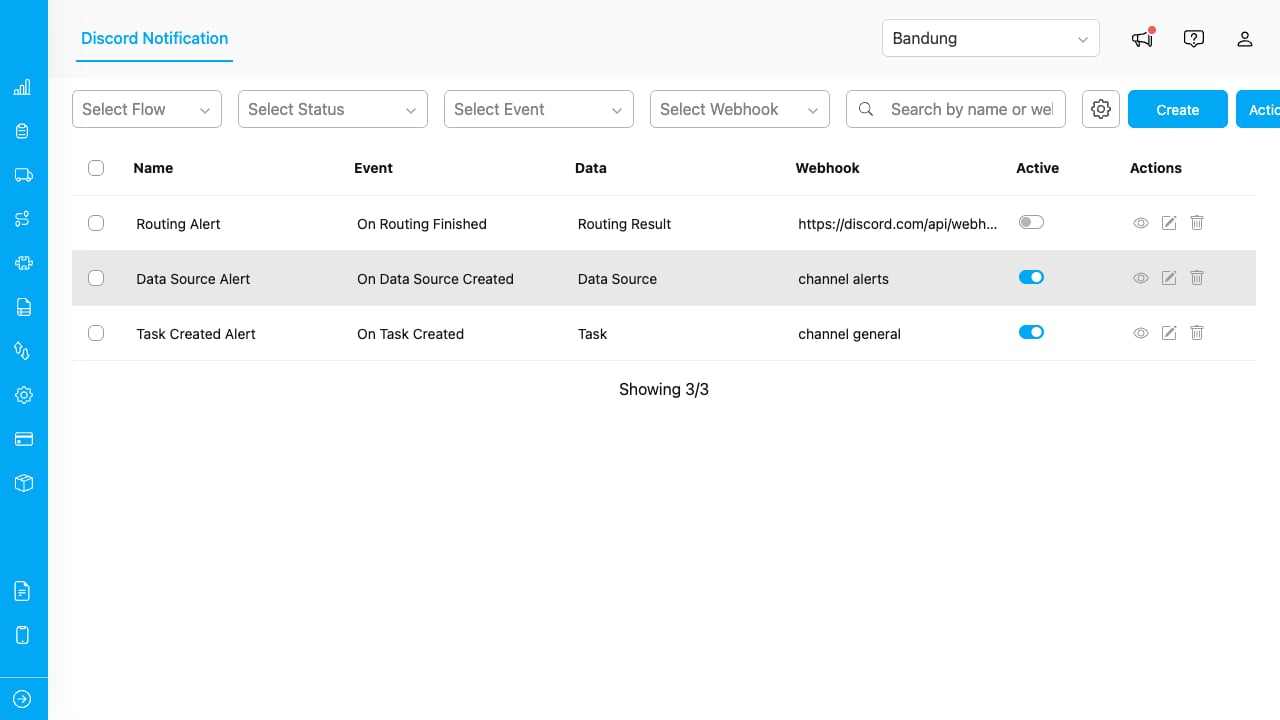
The Discord Notification Manager lists all configured automations with their event type, webhook, and status.
## Key Concepts * **Automation**: A rule that listens for an event and sends a Discord message when it fires. Each automation is linked to one event and one webhook. * **Webhook**: A Discord Webhook URL that points to a specific channel on your Discord server. You generate it inside Discord's channel settings. * **Event**: The trigger that fires the automation. Supported events include task creation, task assignment, task completion, data source creation, routing results, and trip start/finish. * **Message Builder**: The editor where you compose the Discord message, insert dynamic variables (task data, flow fields, mentions), apply markdown formatting, and preview the result in real time. * **Mention**: A pre-configured Discord user or role that can be tagged inside a message so they receive a notification on Discord. ## Who Uses Discord Notification 1. **Administrators and Managers**: Set up the add-on, configure webhooks and mentions, create automations, and monitor delivery through Discord. 2. **Team Members on Discord**: Receive notifications in their channels without needing to log in to the platform. ## What You Can Do * [Set up the add-on](/pages/add-on/discord-notification/setting-up) with a guided wizard that verifies permissions and configures your webhooks * [Create automations](/pages/add-on/discord-notification/creating-automations) that send rich messages with dynamic data to Discord channels * [Manage automations](/pages/add-on/discord-notification/managing-automations) from a central table: search, filter, activate, deactivate, edit, or delete * [Configure settings](/pages/add-on/discord-notification/settings) to add or remove webhooks, mentions, and default bot identity ## Supported Events | Event | Description | | - | - | | Task Created | Fires when a new task is created | | Task Assigned | Fires when a task is assigned to a user | | Task Finished | Fires when a task is marked as complete | | Data Source Created | Fires when a new data source record is created | | Routing Finished | Fires when a route optimization completes | | Routing Dispatched | Fires when an optimized route is dispatched | | Start Trip | Fires when a user starts a trip | | Finish Trip | Fires when a user finishes a trip | ## Getting Started To start using Discord Notification, an administrator must first complete the one-time setup wizard. Head over to [Setting Up](/pages/add-on/discord-notification/setting-up) to begin.