> ## Documentation Index
> Fetch the complete documentation index at: https://docsy3.mile.app/llms.txt
> Use this file to discover all available pages before exploring further.
# Using the Task List
The Task List page lets you browse tasks from your flows, filter them, and print invoices or receipts for one or multiple tasks.
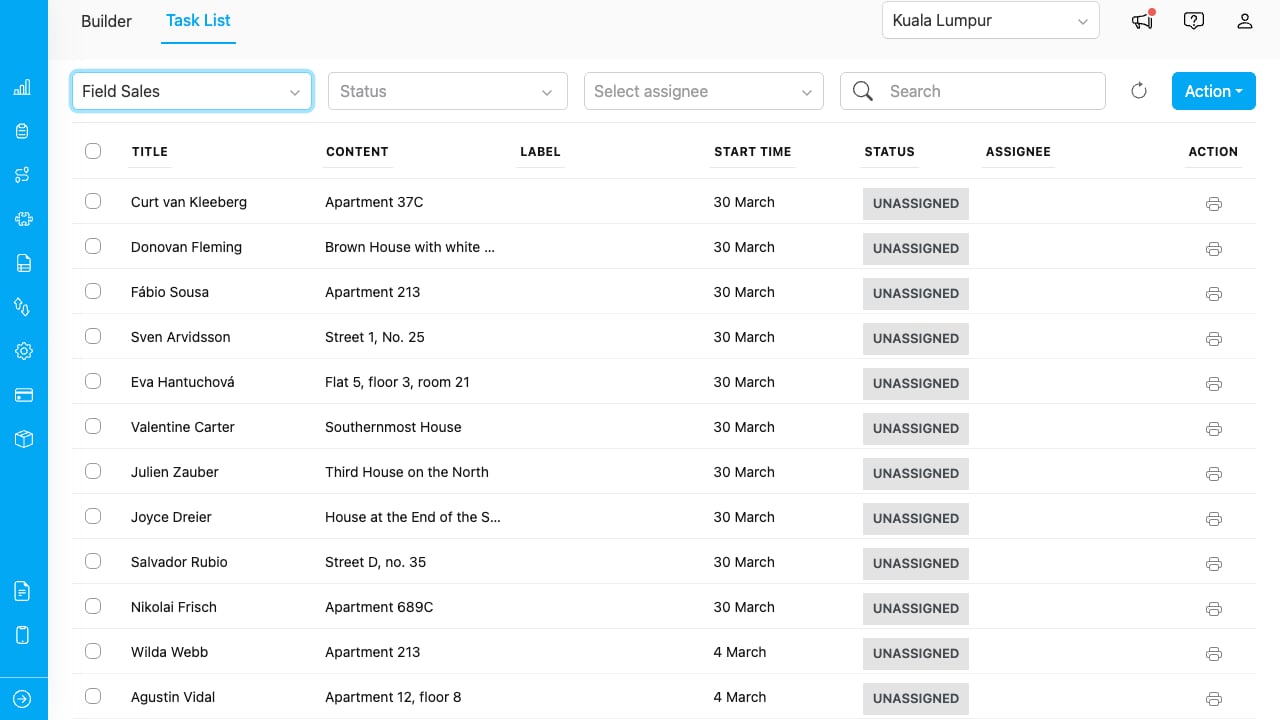
The Task List page with Field Sales flow selected, showing tasks with title, content, label, start time, status, and assignee columns.
## Selecting a Flow
The Task List requires a flow to be selected before tasks appear. Click the **Choose a flow** dropdown and select the flow you want to work with.
Tasks are always filtered by flow. You must select a flow to view any tasks.
## Filtering Tasks
The filter bar provides four filters in this order:
| Filter | Type | Description |
| - | - | - |
| **Flow** | Single select | Required. Determines which tasks are shown. |
| **Status** | Multi-select | Filter by Unassigned, Ongoing, or Done. Select multiple statuses. |
| **Assignee** | Single select with search | Filter by assigned user. Users are pre-loaded. Type to search. |
| **Search** | Text input | Server-side search across task fields. Debounced at 400ms. |
The **Refresh** button (circular arrow icon) reloads the task list with current filter settings.
## Printing from the Task List
### Single Task
Click the **printer icon** in the Action column of any task row. This opens the template selection modal, then the Print Preview with that task's data.
### Multiple Tasks
1. Select tasks using the checkboxes in the first column.
2. Click **Action** > **Print**.
3. Choose a template.
4. The Multi-Task Print modal opens with all selected tasks.
See [Printing and Exporting](/pages/add-on/invoice-generator/printing-and-exporting) for details on the print preview and export options.
## Task Data Columns
The task list displays the following columns:
| Column | Description |
| - | - |
| Checkbox | Select tasks for bulk actions |
| Title | The task's title field |
| Content | The task's content/description |
| Label | Optional label field |
| Start Time | When the task starts |
| Status | Current task status (Unassigned, Ongoing, Done) |
| Assignee | The user assigned to the task |
| Action | Print icon for single-task printing |