> ## Documentation Index
> Fetch the complete documentation index at: https://docsy3.mile.app/llms.txt
> Use this file to discover all available pages before exploring further.

# Setting Up PDF Generator

PDF Generator requires a one-time setup before you can start designing templates. The Setup Wizard verifies your permissions and activates the add-on for your organization.

<Note>
  The Setup Wizard checks for two platform permissions: **View flows** and **View tasks**. Make sure your role has these before starting.
</Note>

## Starting the Setup Wizard

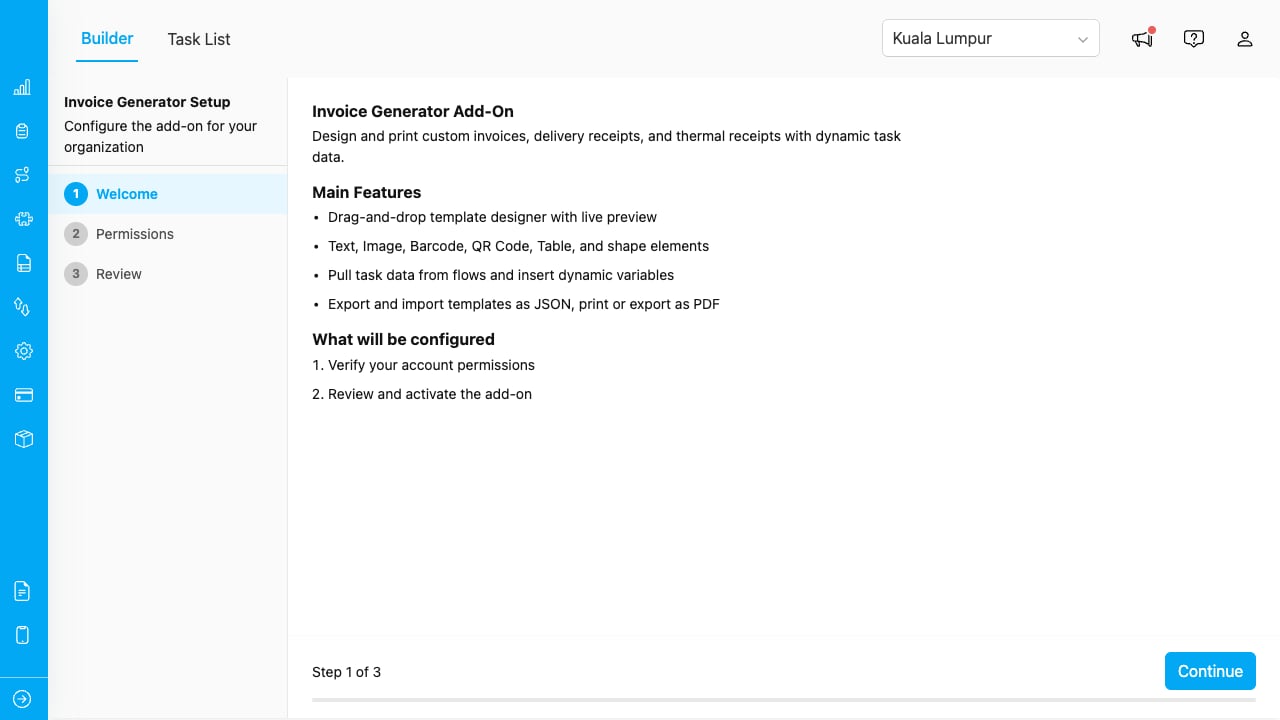
When you open PDF Generator for the first time, the Setup Wizard launches automatically. If the add-on was previously configured and the configuration was deleted, the wizard will reappear.

<div align="center">
  <img src="https://mintcdn.com/mile-app/Jxh3hvdoSQI4O3RP/images/add-on/pdf-generator/wizard-welcome.png?fit=max&auto=format&n=Jxh3hvdoSQI4O3RP&q=85&s=e3fd7257358c9f8fbad42b228c18fca4" alt="Setup wizard welcome screen" width="600" data-path="images/add-on/pdf-generator/wizard-welcome.png" />
</div>

<p><em>The Setup Wizard welcome screen.</em></p>

## Step 1: Welcome

The first screen introduces the add-on and what it does:

* Design PDF templates with a drag-and-drop builder.
* Bind elements to task data for dynamic documents.
* Print or export documents from the Task List.
* Support for multi-page layouts, watermarks, and conditional elements.

Click **Next** to proceed.

## Step 2: Verify Permissions

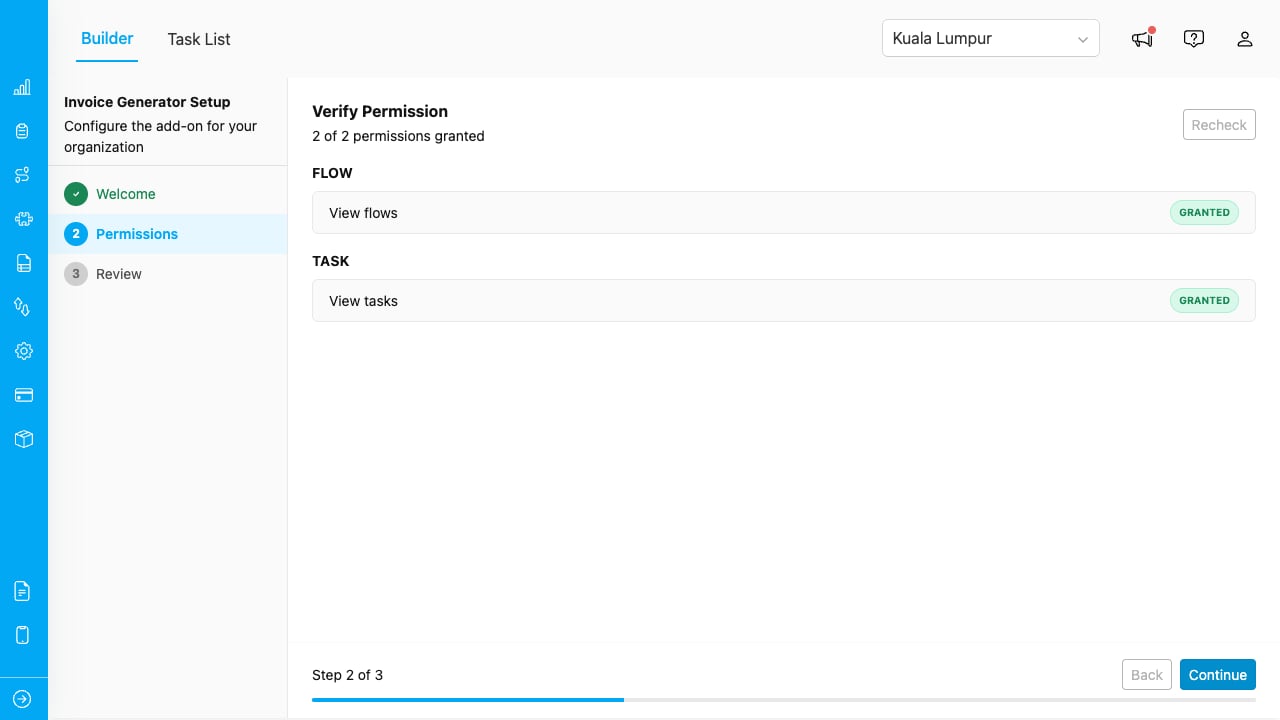
The wizard checks that your account has the required platform permissions.
<div align="center">
  <img src="https://mintcdn.com/mile-app/Jxh3hvdoSQI4O3RP/images/add-on/pdf-generator/wizard-permissions.png?fit=max&auto=format&n=Jxh3hvdoSQI4O3RP&q=85&s=2b27da95c2169b262b7042095b0a3edd" alt="Permission verification step" width="600" data-path="images/add-on/pdf-generator/wizard-permissions.png" />
</div>

<p><em>The wizard verifies your account has the required permissions.</em></p>

| Category | Permission |
| - | - |
| **Flow** | View flows |
| **Task** | View tasks |

If any permission is missing, contact your organization administrator to update your role. Once all permissions show a green checkmark, click **Next**.

## Step 3: Review and Activate

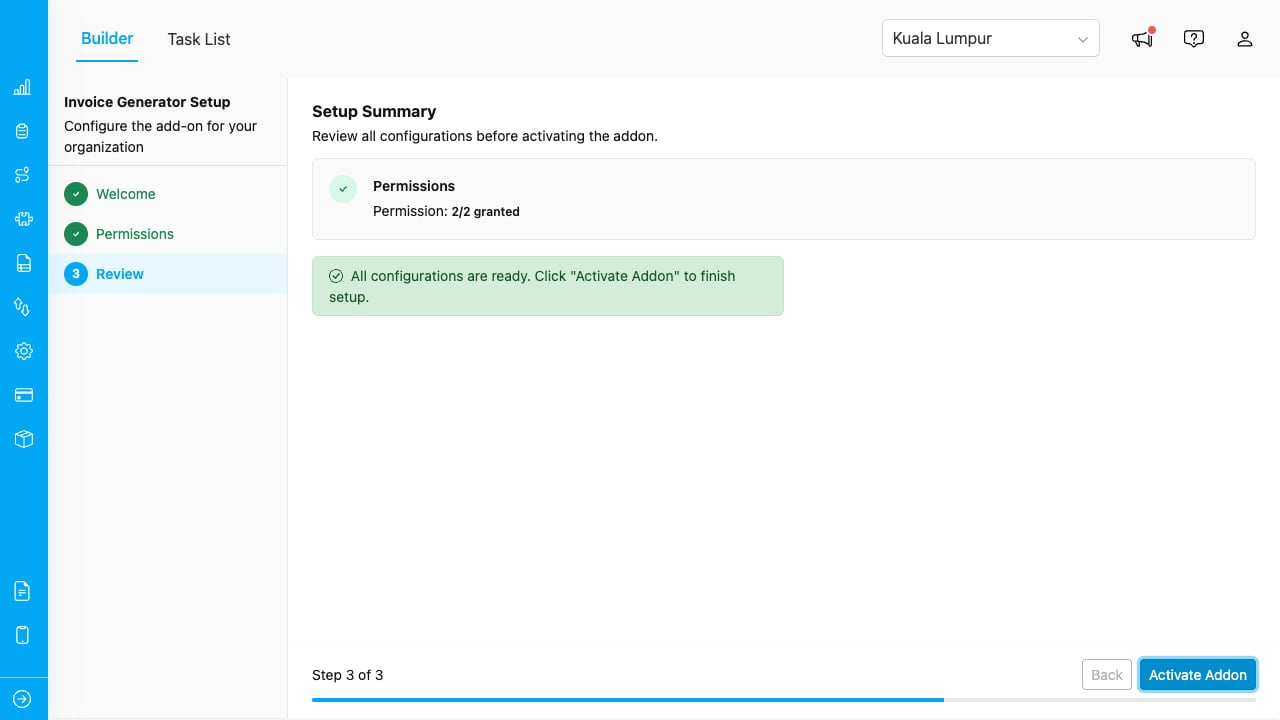
Review the configuration summary, then click **Activate** to complete the setup.
<div align="center">
  <img src="https://mintcdn.com/mile-app/Jxh3hvdoSQI4O3RP/images/add-on/pdf-generator/wizard-review.png?fit=max&auto=format&n=Jxh3hvdoSQI4O3RP&q=85&s=7594e5862f98dee984741dd4820f4fb9" alt="Review and activate step" width="600" data-path="images/add-on/pdf-generator/wizard-review.png" />
</div>

<p><em>Review and activate the add-on.</em></p>

After activation, the builder opens and you can start designing templates immediately.

## Page-Level Permissions

The add-on creates two page-level permissions that control access to its tabs:

| Permission | Controls |
| - | - |
| **View PDF Builder** | Access to the Builder tab for designing templates |
| **View PDF Tasks** | Access to the Task List tab for browsing and printing |

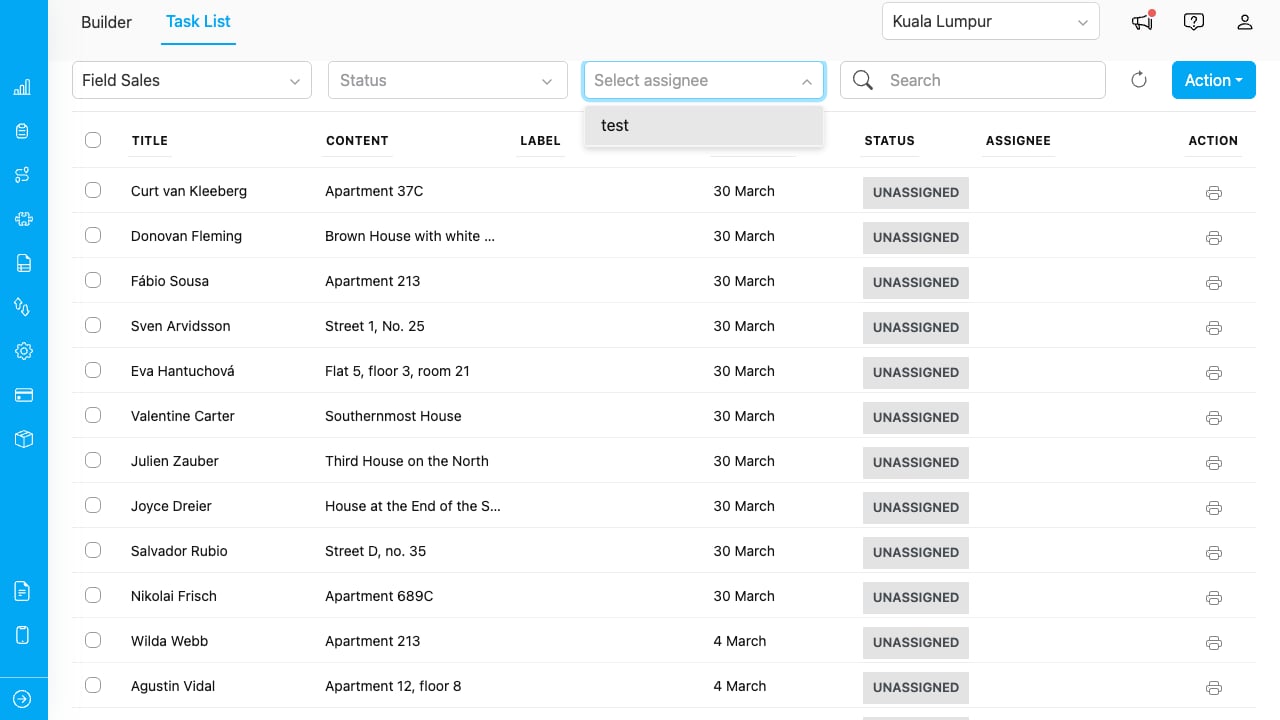
Assign these permissions to roles via **Settings > Roles**. Users without the required permission see an access-denied message.
<div align="center">
  <img src="https://mintcdn.com/mile-app/Jxh3hvdoSQI4O3RP/images/add-on/pdf-generator/no-access.png?fit=max&auto=format&n=Jxh3hvdoSQI4O3RP&q=85&s=d4671a7f9fbb127ceddef0373c245b9d" alt="No access message" width="600" data-path="images/add-on/pdf-generator/no-access.png" />
</div>

<p><em>Users without permission see this message.</em></p>

## Deleting Configuration

To reset the add-on and re-run the Setup Wizard:

1. In the Builder, click the **gear icon** (⚙) in the toolbar.
2. Select **Delete Configuration**.
3. Confirm the deletion.

The wizard will reappear on next load. Saved templates are preserved in the Template Library and are not affected by deleting the configuration.
