> ## Documentation Index
> Fetch the complete documentation index at: https://docsy3.mile.app/llms.txt
> Use this file to discover all available pages before exploring further.
# Using the Task List
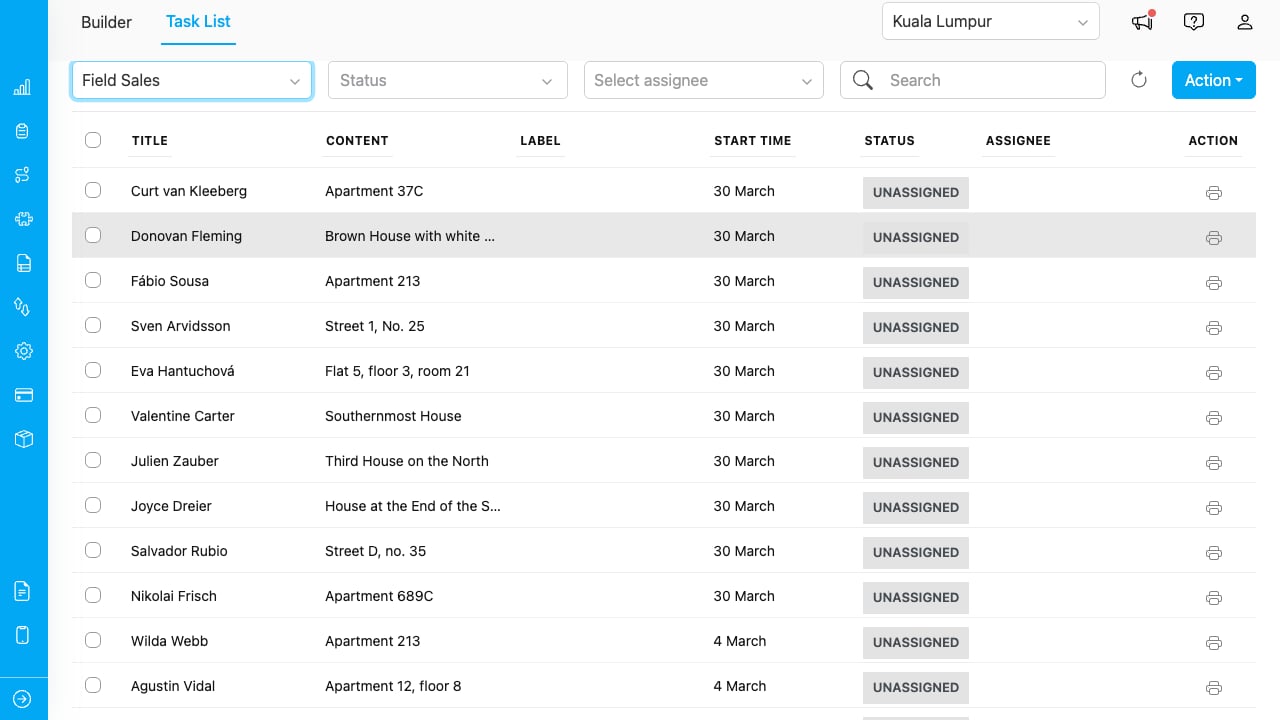
The Task List tab lets you browse tasks by flow, filter by status, assignee, or search text, and print documents for one or more tasks.
The Task List showing tasks for the Field Sales flow.
## Selecting a Flow
Choose a flow from the dropdown at the top of the page. Tasks for that flow load in the table below.
You must select a flow before tasks appear. The dropdown shows all flows available to your organization.
## Filtering Tasks
Use the filter controls above the task table to narrow down results.
| Filter | Type | Description |
| - | - | - |
| **Status** | Multi-select | Filter by task status: Unassigned, Ongoing, or Done. |
| **Assignee** | Dropdown | Filter by assigned user. The user list is pre-loaded (no typing required). |
| **Search** | Text input | Search tasks by title or content. Filters server-side. |
Filters can be combined. For example, select a flow, set Status to "Done", choose an assignee, and type a search term — all filters apply simultaneously.
Click the **refresh button** (arrow icon) to reload tasks while preserving your current filters.
## Printing from the Task List
### Single Task
* Click the **printer icon** on any task row to print that task. See [Printing and Exporting](/pages/add-on/pdf-generator/printing-and-exporting) for details.
### Multiple Tasks
1. Check the checkboxes next to the tasks you want to print.
2. Click the **Action** dropdown and select **Print**.
3. Choose a saved template.
4. Use the Multi-Print modal to preview and export. See [Printing and Exporting](/pages/add-on/pdf-generator/printing-and-exporting) for details on separate vs combined PDF export.
## Task Data Columns
The task table shows the following columns:
| Column | Description |
| - | - |
| **Checkbox** | Select tasks for bulk actions. |
| **Title** | The task title (usually the customer or location name). |
| **Content** | Additional task content or address. |
| **Label** | Task label or tag. |
| **Start Time** | Scheduled start date. |
| **Status** | Current status with a colored badge (Unassigned, Ongoing, Done). |
| **Assignee** | The user assigned to the task. |
| **Action** | Printer icon to print this task. |