> ## Documentation Index
> Fetch the complete documentation index at: https://docsy3.mile.app/llms.txt
> Use this file to discover all available pages before exploring further.

# How to Delete your Organization

**Important Notes**:

1. **Irreversible Action**: Deleting an organization is permanent and cannot be undone. Ensure you have backed up any critical data before proceeding.
2. **Owner's Role Requirement**: Only users with the role of "Owner" have the authority to delete an organization. If you do not possess this role, contact the organization owner to perform this action.
3. **Password Input Required**: To prevent accidental deletions, you must input your password to confirm the deletion.

If you find the need to delete your organization, follow the steps below to ensure a smooth process. Deleting an organization is a irreversible action, and it will result in the complete removal of all associated data.

<div align="center">
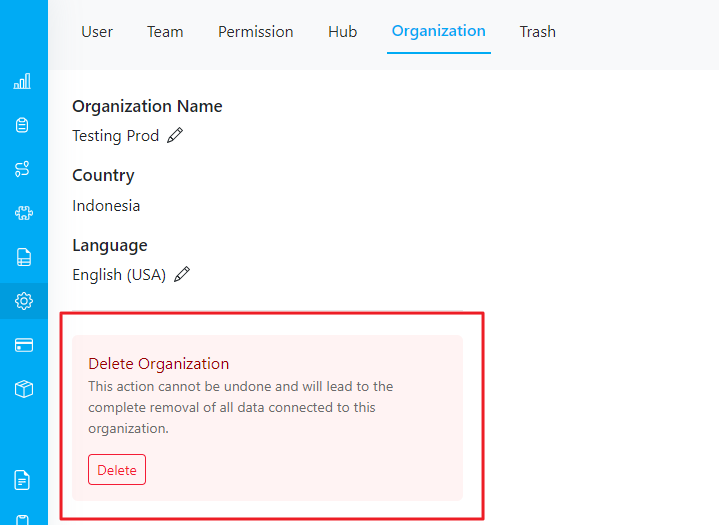
  <img src="https://mintcdn.com/mile-app/MUIsaJjssf9Cm1te/images/setting/how-to-delete-your-organization-01.png?fit=max&auto=format&n=MUIsaJjssf9Cm1te&q=85&s=12f877de62e6dbfcb401f86c496d8c18" alt="image" width="600" data-path="images/setting/how-to-delete-your-organization-01.png" />

  <p><i>Delete button on Setting/Organization page</i></p>
</div>

### Steps to Delete Organization:

1. Navigate to the "Settings" menu in the organization dashboard.
2. Click on the "Organization" tab.
3. Locate the "Delete" button.
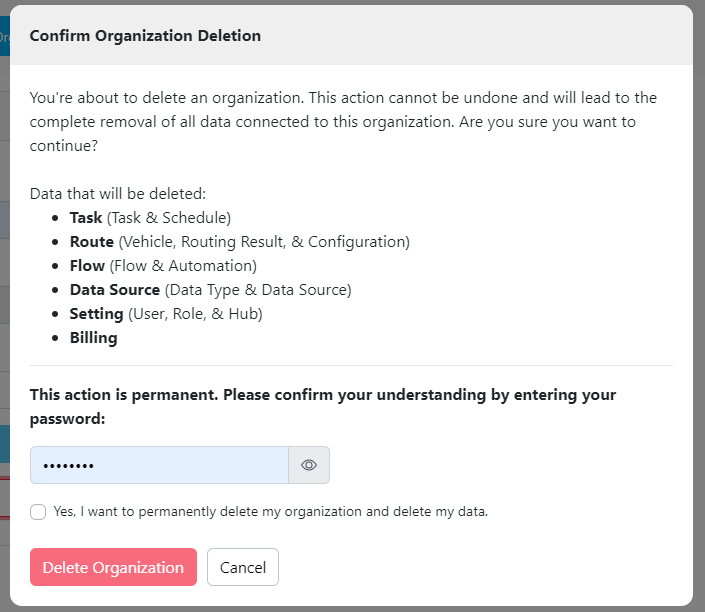
4. Confirm your decision by entering your password.

### Data to be Deleted:

Deleting the organization will remove the following types of data:

* **Task**: All task-related information including task details and schedules.
* **Route**: Information related to vehicles, routing results, and configurations.
* **Flow**: Data pertaining to flows and automation processes.
* **Data Source**: Data types and sources associated with the organization.
* **Setting**: User information, roles, and hub configurations.
<div align="center">
  <img src="https://mintcdn.com/mile-app/MUIsaJjssf9Cm1te/images/setting/how-to-delete-your-organization-02.png?fit=max&auto=format&n=MUIsaJjssf9Cm1te&q=85&s=81f740c37f2e73e620fb97114612d703" alt="image" width="600" data-path="images/setting/how-to-delete-your-organization-02.png" />

  <p><i>Form delete organization</i></p>
</div>

Upon successful deletion of your organization, an **email notification** will be sent to both the owner and all associated users within the organization. This notification is to inform you that the organization has been permanently deleted.

### After Deletion

The experience after deleting your organization depends on whether you belong to other organizations:

* **If you have other organizations**: You will see a success page with an option to log in and access your other organizations. Your account remains active, and you can continue using the platform with your remaining organizations.

* **If this was your only organization**: You will see a farewell page and be redirected to the homepage. Your access to the platform will be revoked until you create or join a new organization.

<Tip>
  With the [Multi-Organization](/pages/setting/multi-organization) feature, you can belong to multiple organizations using the same email address. This means deleting one organization doesn't necessarily mean losing access to the platform entirely.
</Tip>

***

## Related

* [Multi-Organization](/pages/setting/multi-organization)
* [Organization Management](/pages/setting/organization-management)
