Required permission:
- View alert
- Resolve alert (to mark an alert as resolved)
- View tracking (for the View in Tracking button)
The alert list
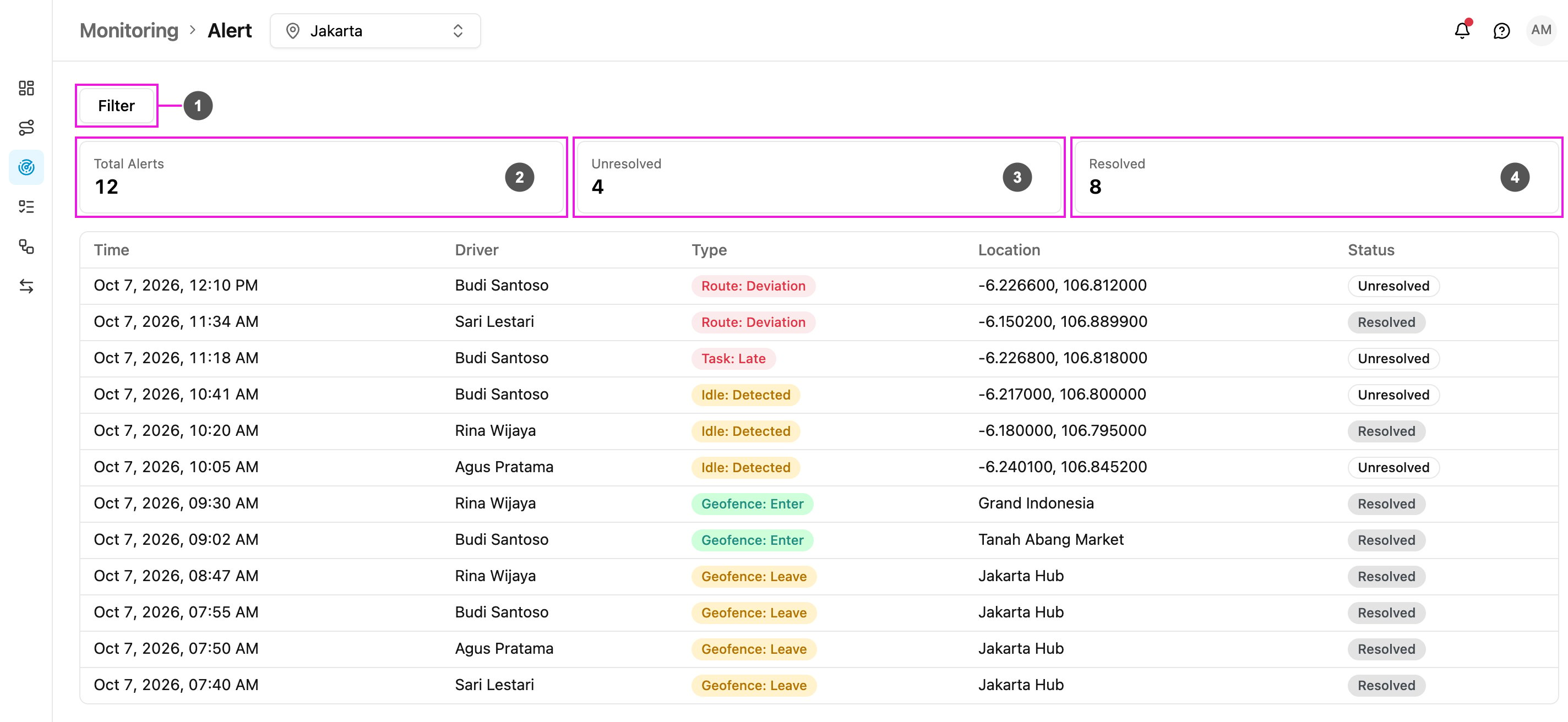
- Filter: open the filters (see below). The number on the button shows how many filters are on.
- Total Alerts: how many alerts match the filters.
- Unresolved: how many of them have not been handled yet.
- Resolved: how many of them have been marked as resolved.
Filter the list
Click Filter to open the filters.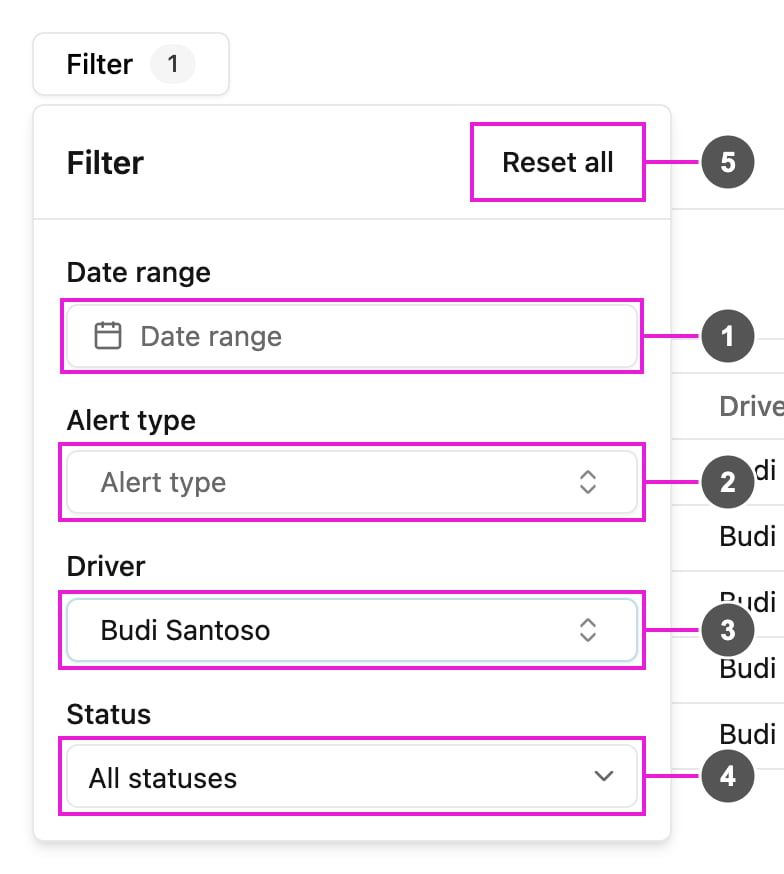
- Date range: the period to show. Leave it empty to see all dates. The X in the date picker clears the range and goes back to all dates.
- Alert type: show only some types. You can pick more than one.
- User: show only one field worker’s alerts. All users shows everyone.
- Status: show All statuses, or only Unresolved or Resolved alerts.
- Reset all: clear every filter.
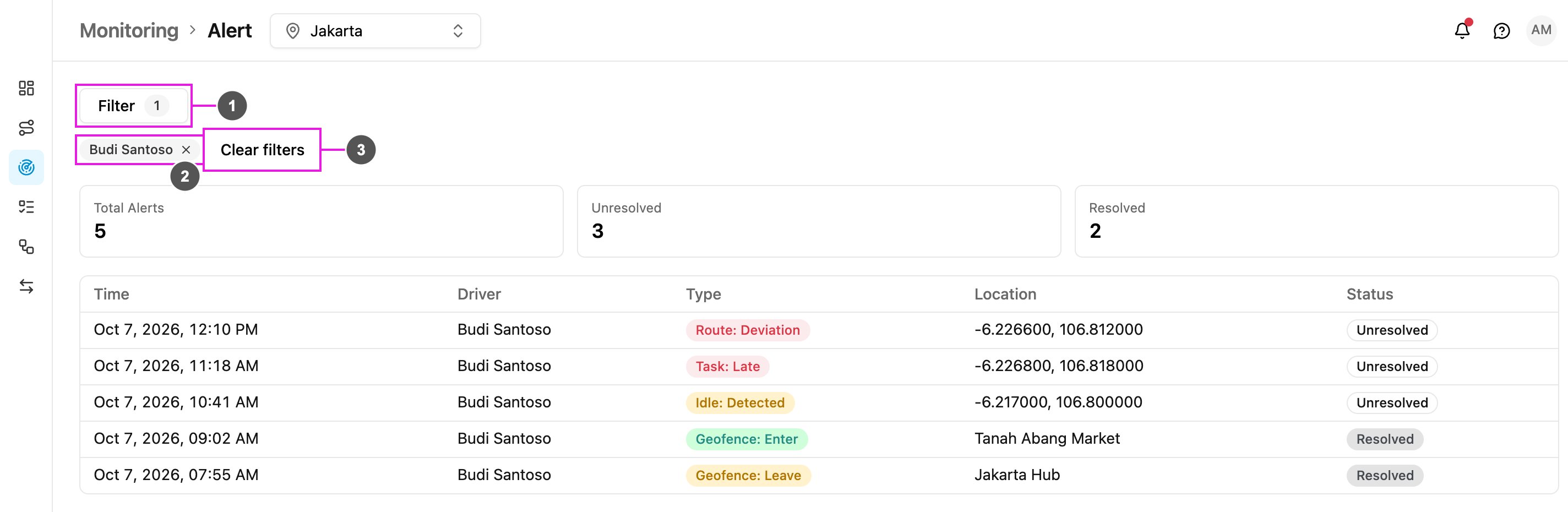
- Filter: the number shows how many filters are on.
- Filter chip: the filter that is on, for example the user’s name. Click its X to remove that filter.
- Clear filters: remove every filter at once.
If nothing matches, the page says No alert in this period and suggests a wider date range or fewer filters.
Alerts and the selected hub
The list and the cards show only the alerts of the hub selected in the top bar, plus the alerts that have no hub. Pick another hub in the top bar to see its alerts: the list goes back to page 1 and keeps your other filters. An alert gets its hub from the event, for example the hub of the task that is late. When the event has no hub, the alert takes the field worker’s hub, but only if the field worker belongs to exactly one hub. Otherwise the alert has no hub. An alert with no hub is shown under every hub, so nobody misses it. This applies to:- alerts about a field worker who belongs to more than one hub, when the event does not say which hub;
- alerts raised before the app started saving the hub on alerts.
Alert types
The limits behind idle, route deviation, lateness, overspeed, low battery and driver offline alerts are set per organization in Alert Setting. The defaults are 50 m within 30 minutes for idle, 150 m from the planned route, 2 minutes for lateness 80 km/h for overspeed, 15% for low battery and 30 minutes for driver offline.Overspeed
An Overspeed alert is raised when a field worker drives faster than your organization’s speed limit for 3 location updates in a row. The speed limit is 80 km/h by default; you can change it in Alert Setting. A speed exactly at the limit does not count. The alert names the limit, for example Budi is driving at 72 km/h, above the 60 km/h limit.- While the field worker keeps speeding, the alert is repeated every 10 minutes with the title Still overspeeding.
- The overspeeding ends when one location update is at or below the speed limit, or when no fast location update arrives for 10 minutes. The next time the field worker goes above the limit for 3 updates in a row, a new Overspeed alert is raised.
- A location update that does not report a speed is skipped. It neither counts towards the 3 updates nor ends the overspeeding.
Low battery
A Low battery alert is raised when a location update from a field worker’s phone reports a battery level at or below your organization’s battery limit. The limit is 15% by default; you can change it from 2% to 60% in Alert Setting. The alert names the level and the limit, for example Budi’s phone battery is at 10%, at or below the 15% limit.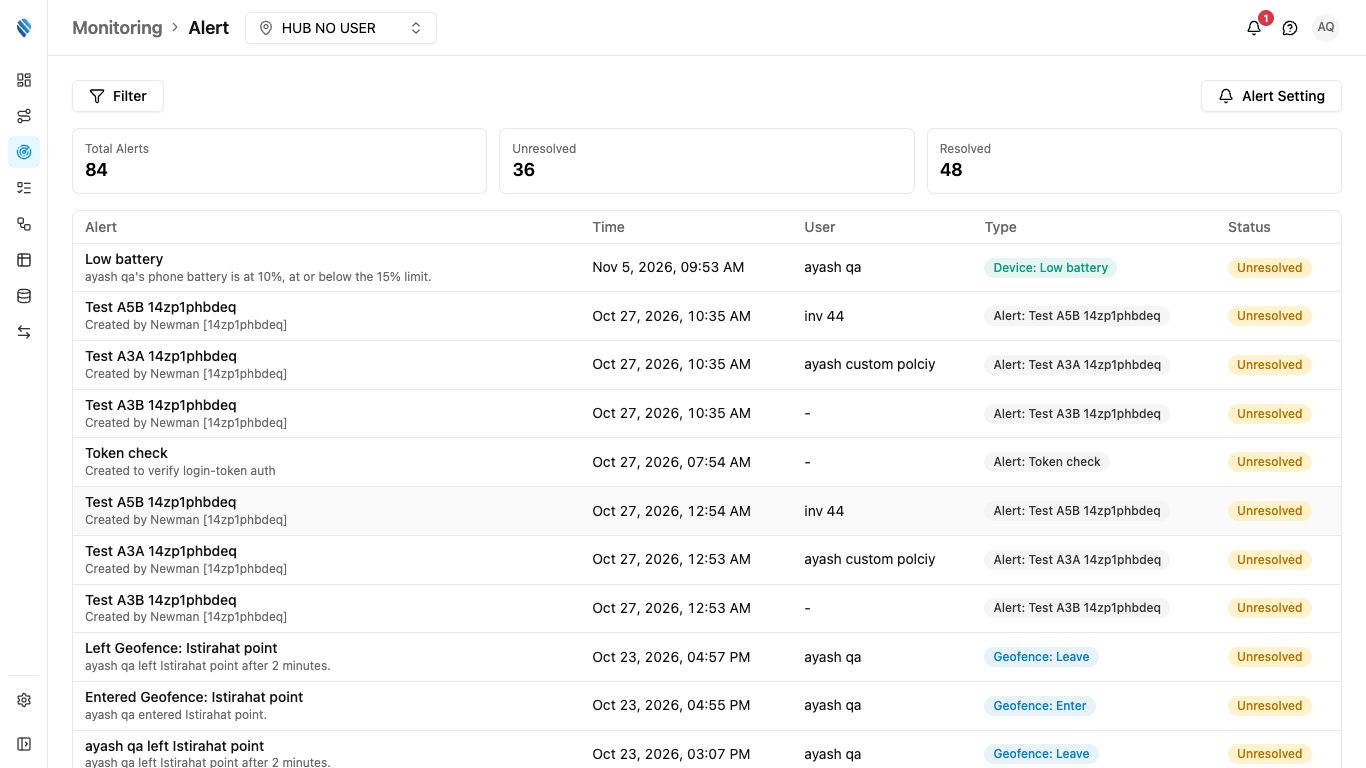
- While the battery stays at or below the limit, the alert is repeated after 30 minutes with the title Still low battery.
- The low battery ends when a location update shows a level at least 10 points above the limit, for example 25% for a 15% limit. The next time the battery drops to the limit, a new Low battery alert is raised.
- A location update that does not report a battery level is skipped. It neither raises an alert nor ends the low battery.
Driver offline
A Driver offline alert is raised when a driver who is on a trip has sent no location for longer than your organization’s offline limit. The limit is 30 minutes by default; you can change it from 10 to 120 minutes in Alert Setting. The alert names the driver and how long the app has heard nothing, for example Budi has sent no location for 35 minutes. Last battery 12%. No internet connection.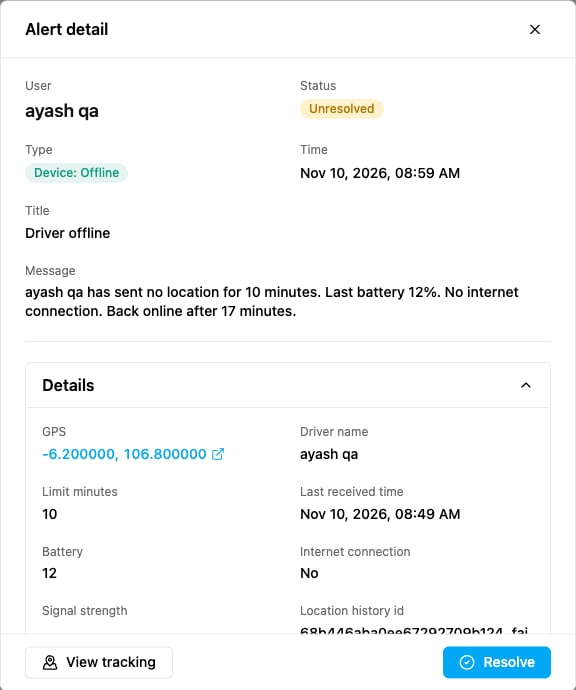
- Only drivers who have started a trip are watched. A driver who finished the trip, or has not started one, is never reported offline.
- The alert shows the battery level and the internet connection of the last location received. If the last location did not report them, they are left out.
- The alert is raised once. It is not repeated while the driver stays offline.
- When the driver sends a location again, the same alert is updated with Offline minutes and Back online time, and its message ends with Back online after 17 minutes. A second notification, Driver back online, is sent to the notification bell. The alert stays unresolved until you resolve it.
- If the app stops receiving locations from many drivers at the same time, it is treated as an outage on our side and no driver offline alerts are raised.
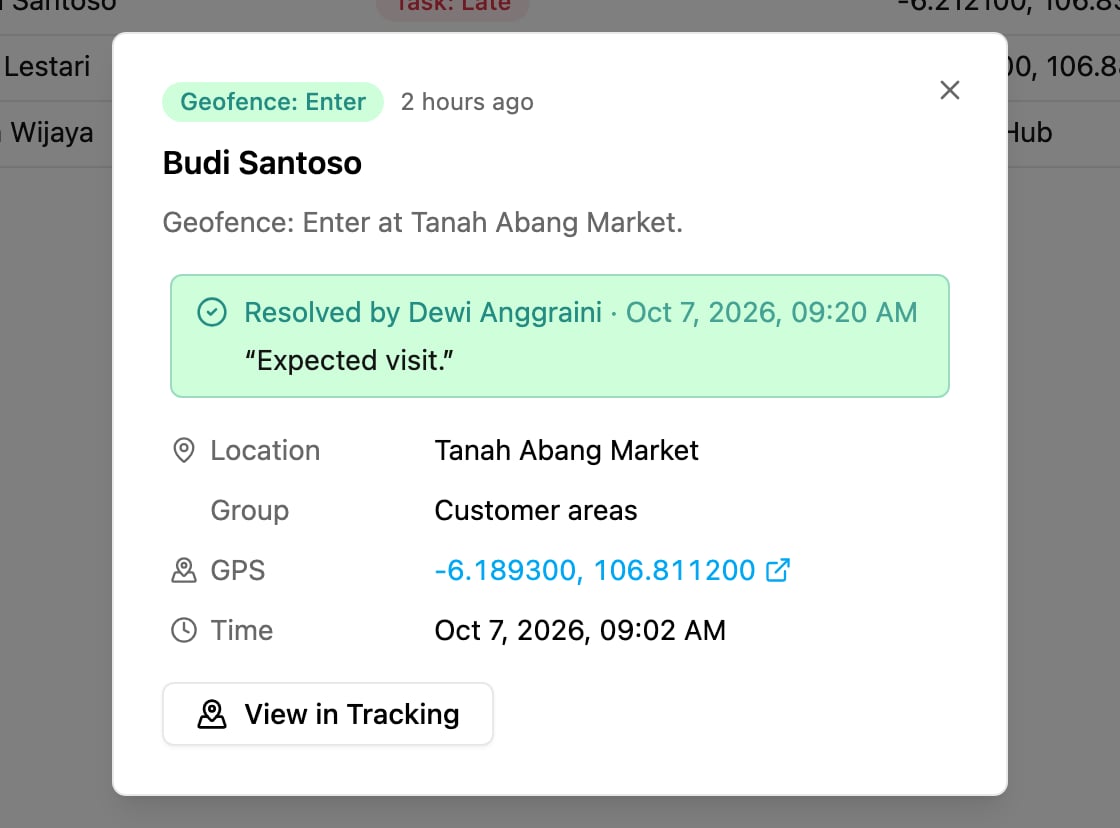
Alert detail
Click a row to open the alert.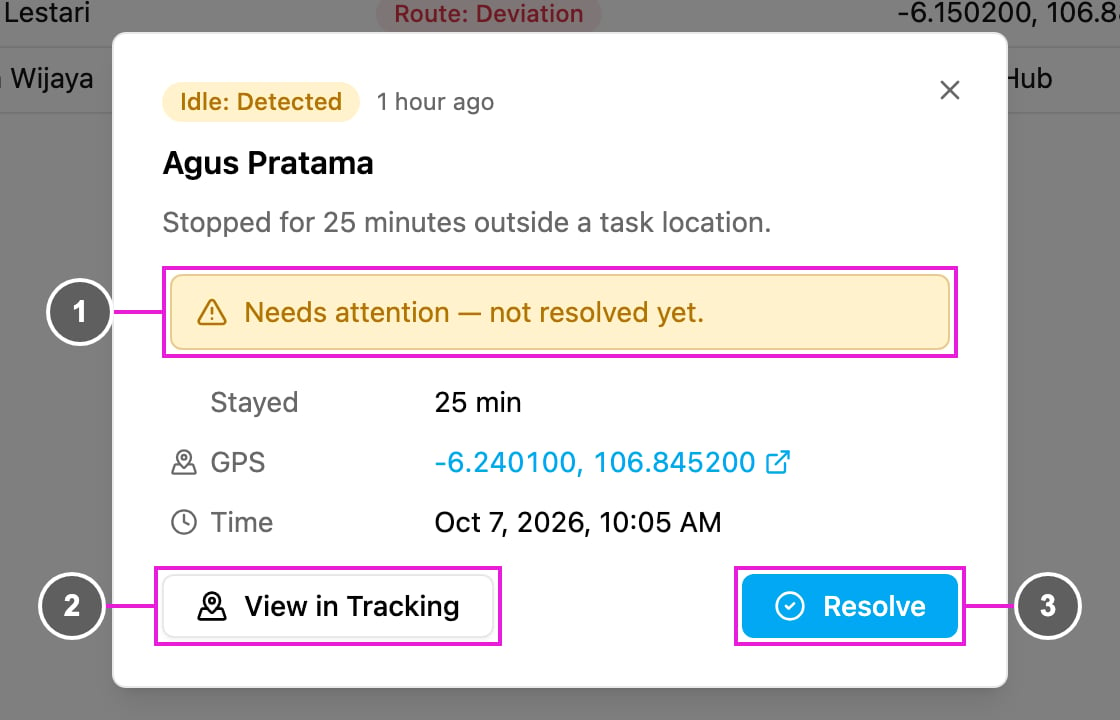
- Needs attention — not resolved yet.: the alert has not been handled.
- View in Tracking: open the Tracking page on this field worker and day, with the alert selected. See User Details.
- Resolve: record that the alert was handled.
Resolve an alert
Click Resolve in the alert detail.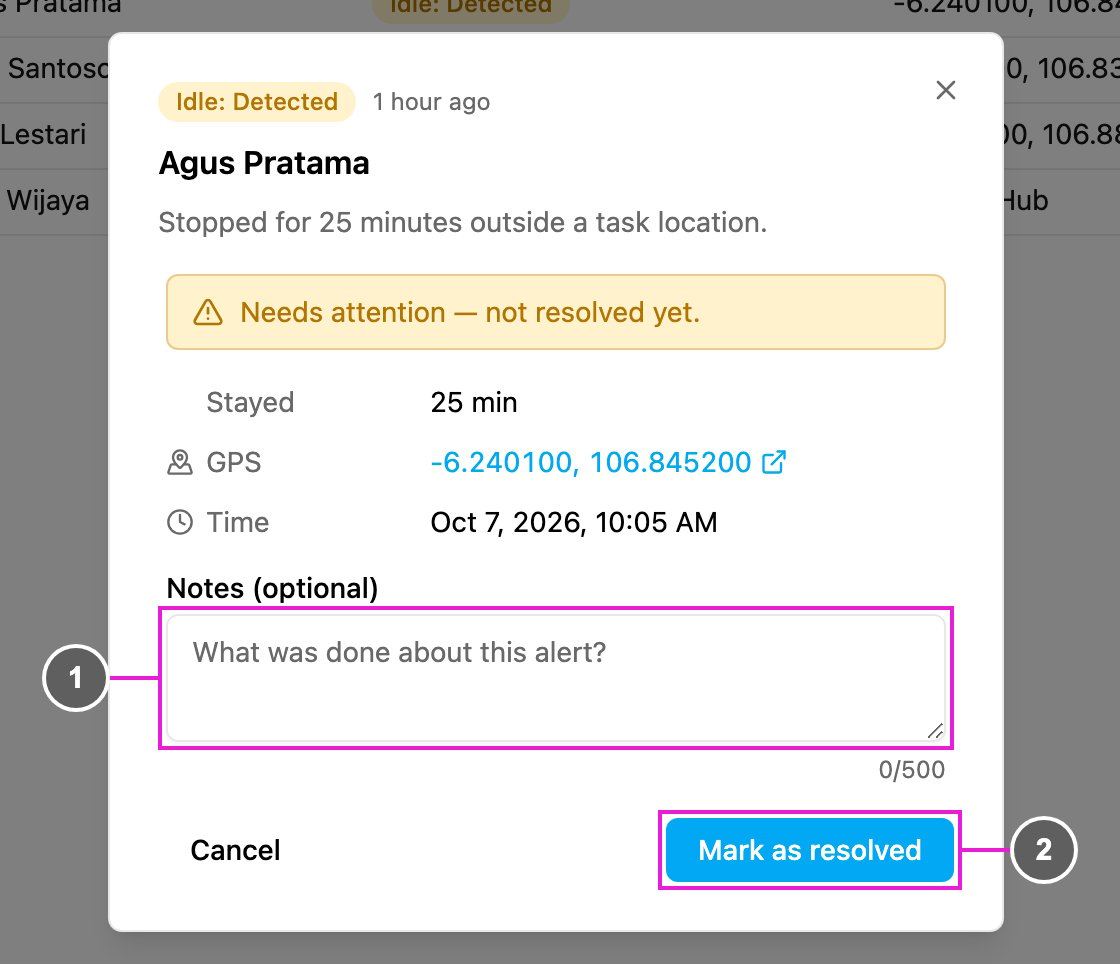
- Notes (optional): what was done about the alert, up to 500 characters.
- Mark as resolved: save. The app says Alert resolved. and the row’s status changes to Resolved. The Unresolved and Resolved cards update too. Click Cancel to go back without resolving.