Required permission:
- View dashboard
- Add dashboard (to create or duplicate a dashboard)
- Edit dashboard (to change widgets, filters, name and sharing)
- Delete dashboard (to delete a dashboard)
The dashboard list
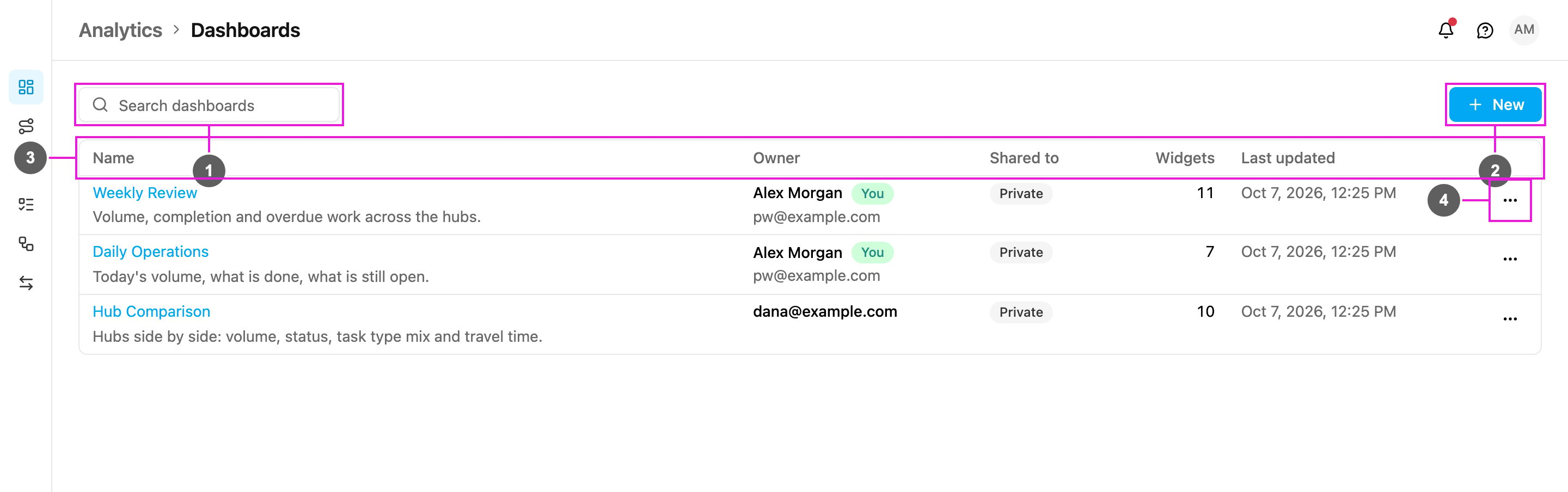
- Search dashboards: find a dashboard by name.
- New: create a dashboard from a template. See Dashboard Templates.
- Table: every dashboard you own or that is shared with your role.
- ⋯: the actions for one dashboard.
If nothing matches the search, the list says No dashboard matches. With no dashboards at all it says No dashboards yet and invites you to start from a template.
Dashboard actions
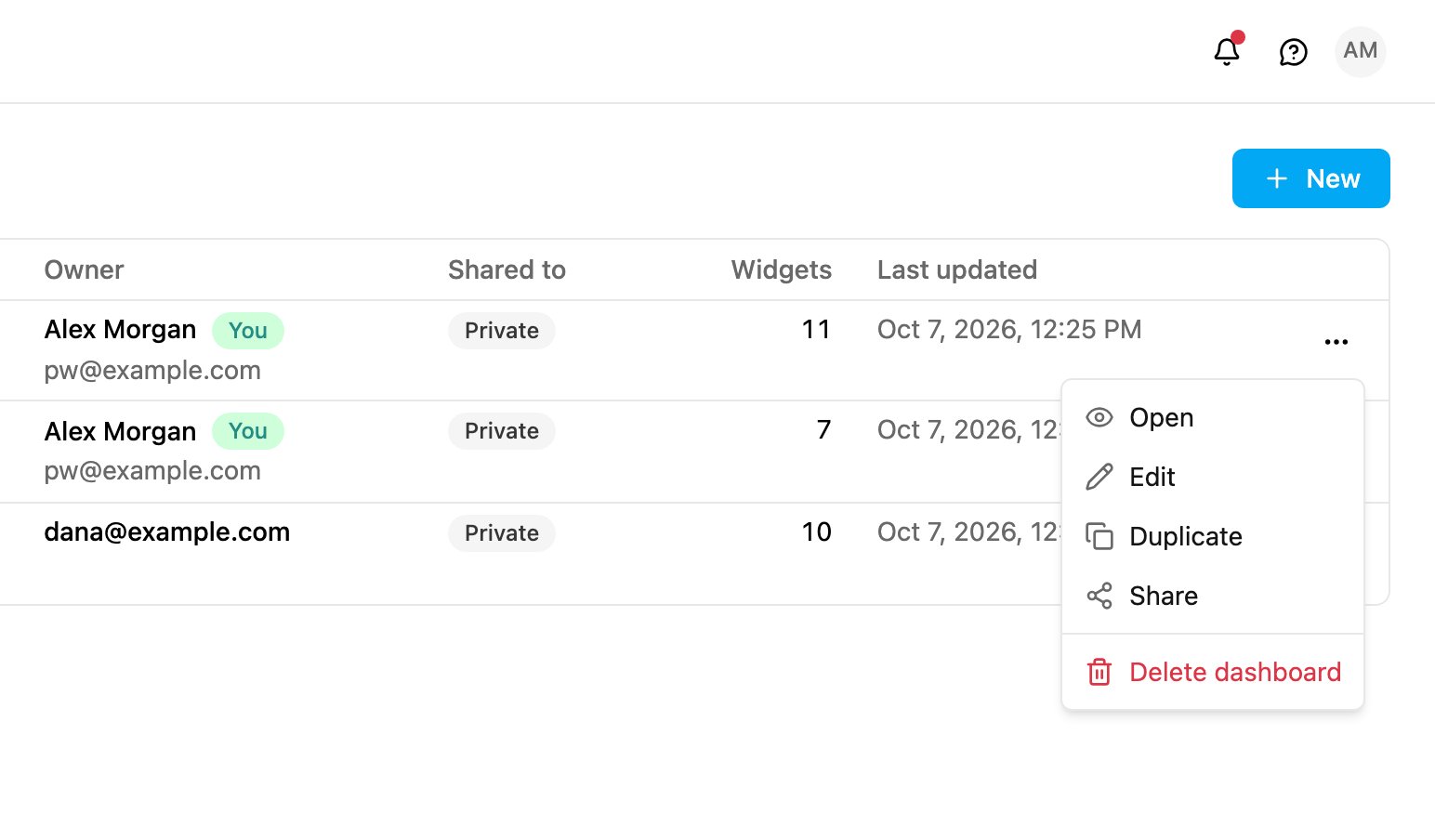
- Open: show the dashboard.
- Edit: open the dashboard in edit mode. See Editing a Dashboard.
- Duplicate: make your own copy, shared with your own role only, even when the original is shared more widely.
- Share: choose the roles that can open it. See Sharing a Dashboard.
- Delete dashboard: remove the dashboard and its layout for everyone it is shared with. This can’t be undone.
Reading a dashboard
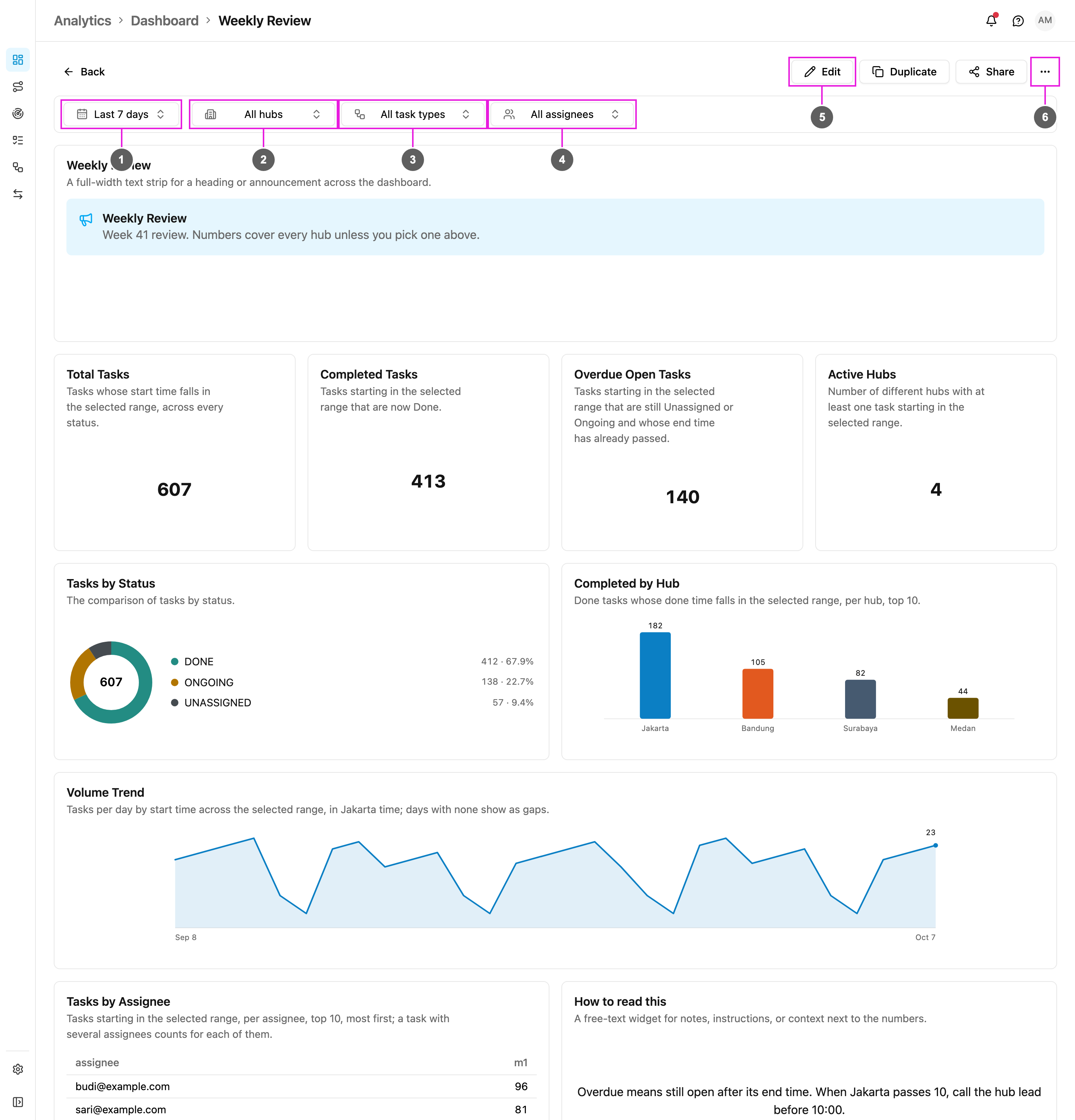
- Time range: the period every widget counts. The default is Last 30 days.
- Hubs: All hubs, or one or more hubs.
- Flows: All flows, or one or more flows.
- Assignees: All assignees, or one or more people.
- Edit: change the widgets. Duplicate and Share sit beside it.
- More dashboard actions: Delete dashboard.
Filters
The four filters at the top apply to every widget at once.Time range
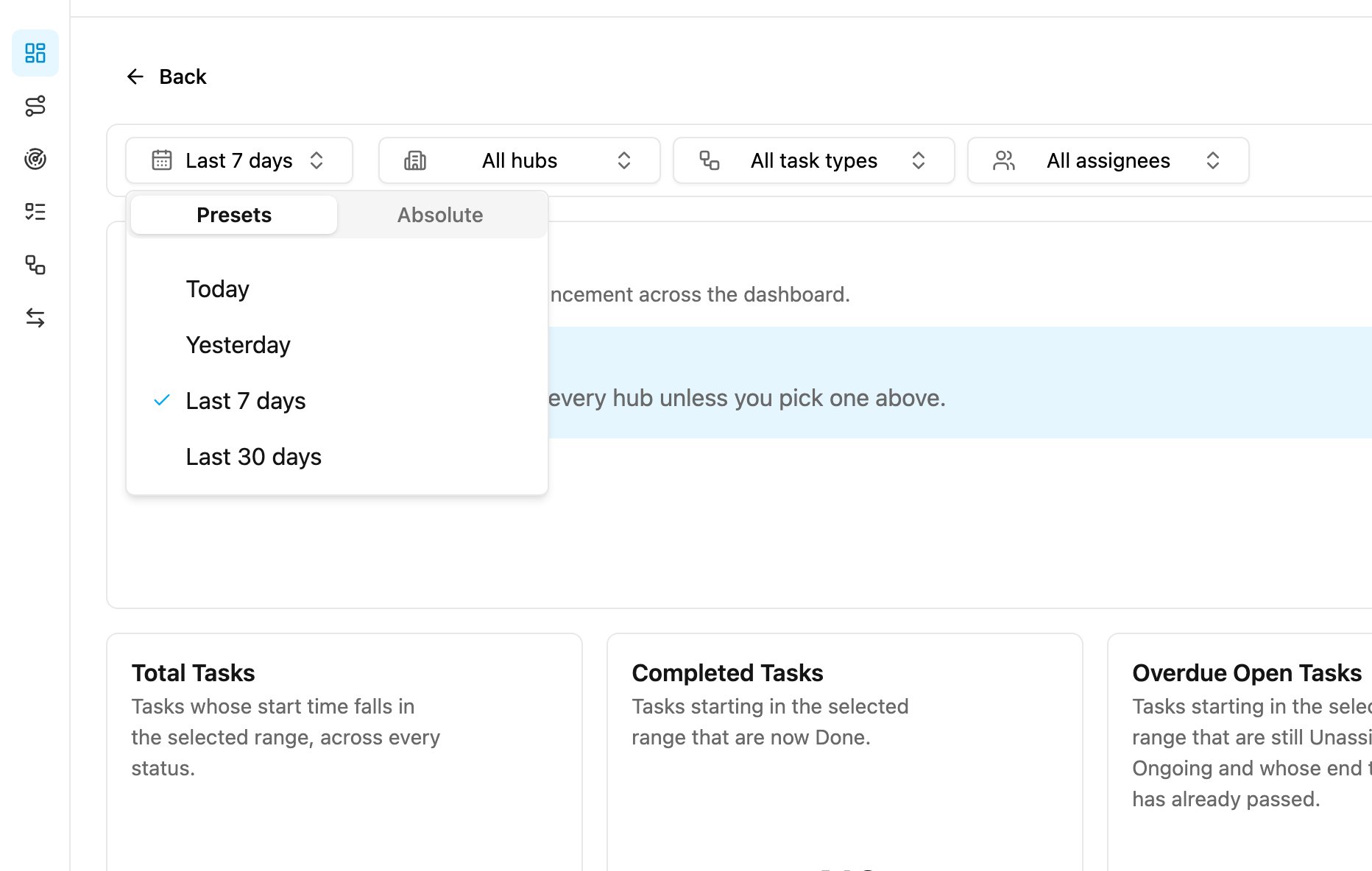
- Presets: Today, Yesterday, Last 7 days or Last 30 days.
- Absolute: pick a From and To date and click Apply. A custom range can be at most 31 days, counting both the first and the last day: 1–31 January fits, 1 January – 1 February doesn’t.
Hubs, flows and assignees
- Hubs: choose one or more hubs. The list shows only the hubs you have access to, and All hubs means all of them. Changing the hubs keeps your flow and assignee filters.
- Flows: choose one or more flows. Empty means every flow.
- Assignees: choose one or more people. Empty means everyone.
Filters are kept in the address
Every filter you choose is written into the page address. Copy the address to send someone exactly the view you are looking at, or bookmark it. When the filters differ from what the dashboard saved, a Reset filters button brings back the dashboard’s own time range and hubs and clears the flow and assignee filters. Clicking a bar or a slice does not filter the dashboard: hover over it to read its value. Filters come only from this filter bar and from each widget’s own filters.Widget options
Hover over a widget and click ⋯ for its options.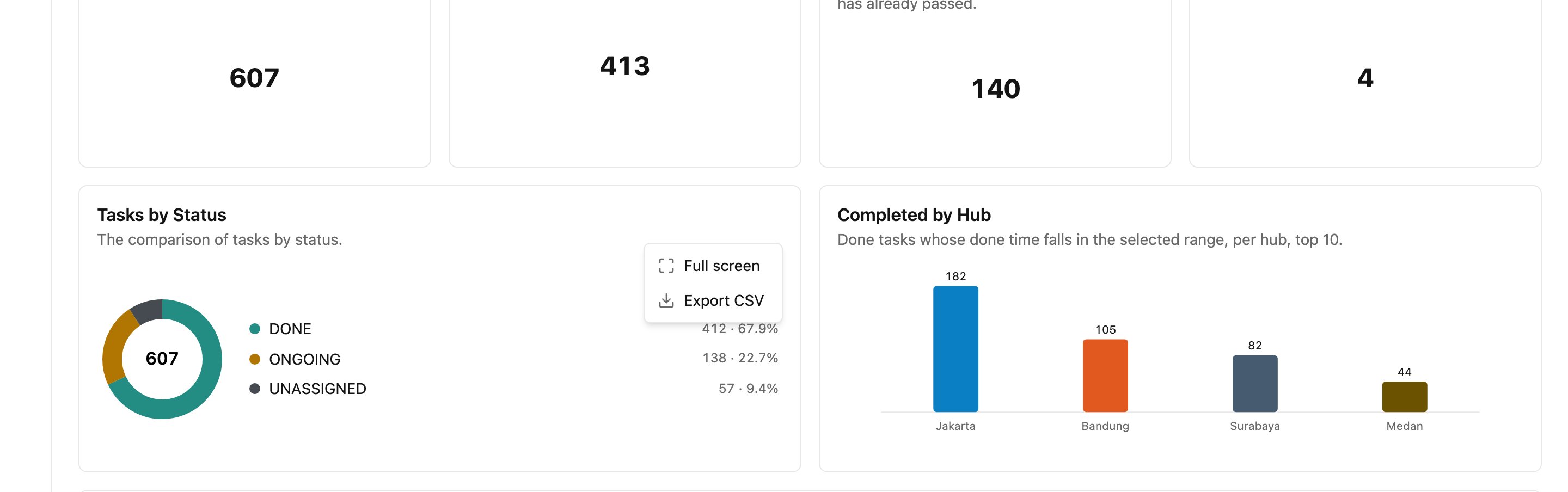
- Full screen: show the widget alone, larger.
- Export CSV: download the numbers behind the widget as a CSV file.
- Save as widget template: only on a custom widget. See Widget Templates.
Widget messages
A widget that can’t load never stops the others from showing.
From the previous version
The task dashboard of the previous version had four fixed charts: Task Activity, Task by Status, User Activity and User by Status, filtered by date range (at most 30 days, by task start time), user and flow. Those four charts are now widgets, and the Default Dashboard template lays them out the same way:
The date, user and flow filters are still there, as Time range, Assignees and Flows, and you can now also filter by hub.
In this section
- Dashboard Templates: every starting layout and what it shows.
- Dashboard Widgets: every widget you can add.
- Editing a Dashboard
- Sharing a Dashboard
- Insight: ask questions about your tasks in plain language.