Required permission:
- View data source
- Create data
Add a record
- Open Data Source and pick the data type in the list beside the records.
- Click New. The New <data type> dialog opens, for example New Customer. If the data type already holds as many records as your plan allows, New opens an Upgrade plan dialog instead, for example You have reached your limit of 100 data for this data type on the Free plan. Click Upgrade to a higher plan to change it.
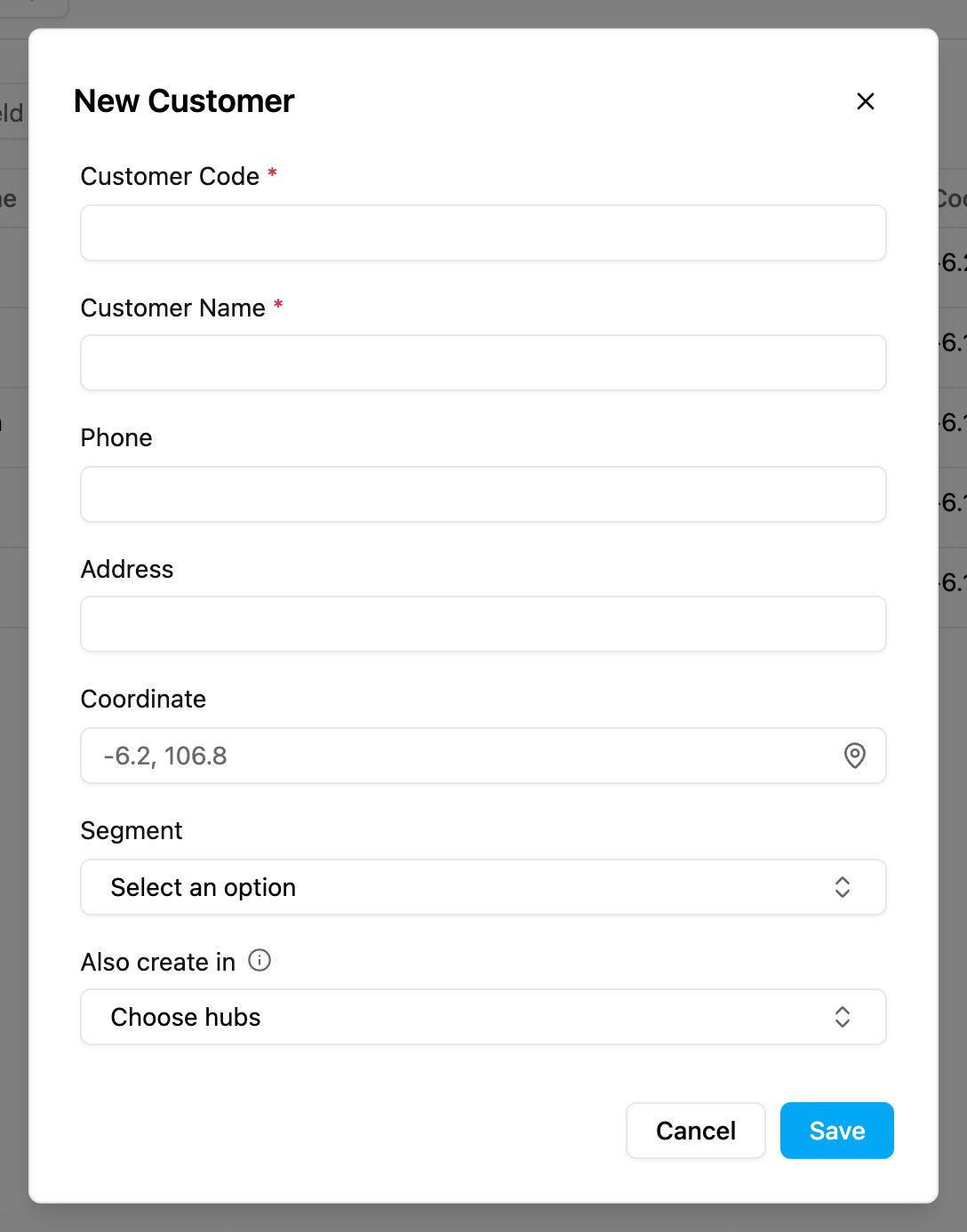
- Fill in the fields. The form has one input for each field of the data type, in the order set on the data type:
- Fields marked * are required. The first one is the Title, the code that identifies the record. It can hold letters, numbers,
-,_, and single spaces between words (a data type that still works in the older version takes no spaces). A space typed at the start or end is removed when you save. - Coordinate takes a latitude and longitude, such as
-6.2088,106.8456. Click the pin to pick the point on a map. - Option and Multi option fields open a list of their choices.
- Relation fields open a list of records to link. See Linked records.
- The data type’s rules apply: a number between its minimum and maximum, a phone number of 10 to 16 digits, and so on.
- Fields marked * are required. The first one is the Title, the code that identifies the record. It can hold letters, numbers,
- Also create in: shown only for data types with Scope Data by Hub on. The record is added to the hub you are working in. To add it to other hubs too, pick them here. Each hub gets a separate copy, and each copy is edited on its own.
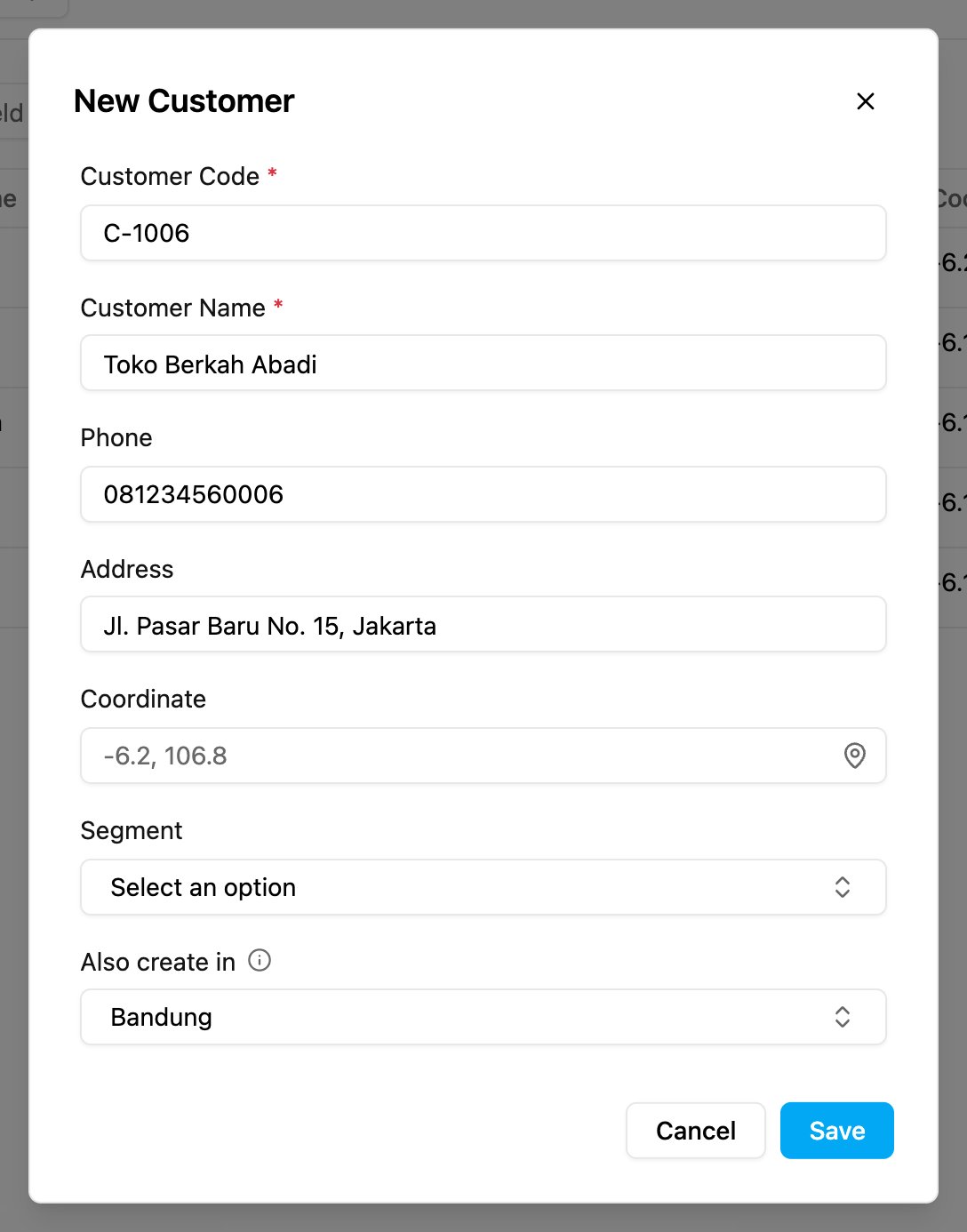
Also create in adds a separate copy of the record in each hub you pick.
- Click Save. The web app says Record created and the record appears in the list.
Scope records by user
When the data type has Scope Data by User on, the dialog also has a Scope Data by User section.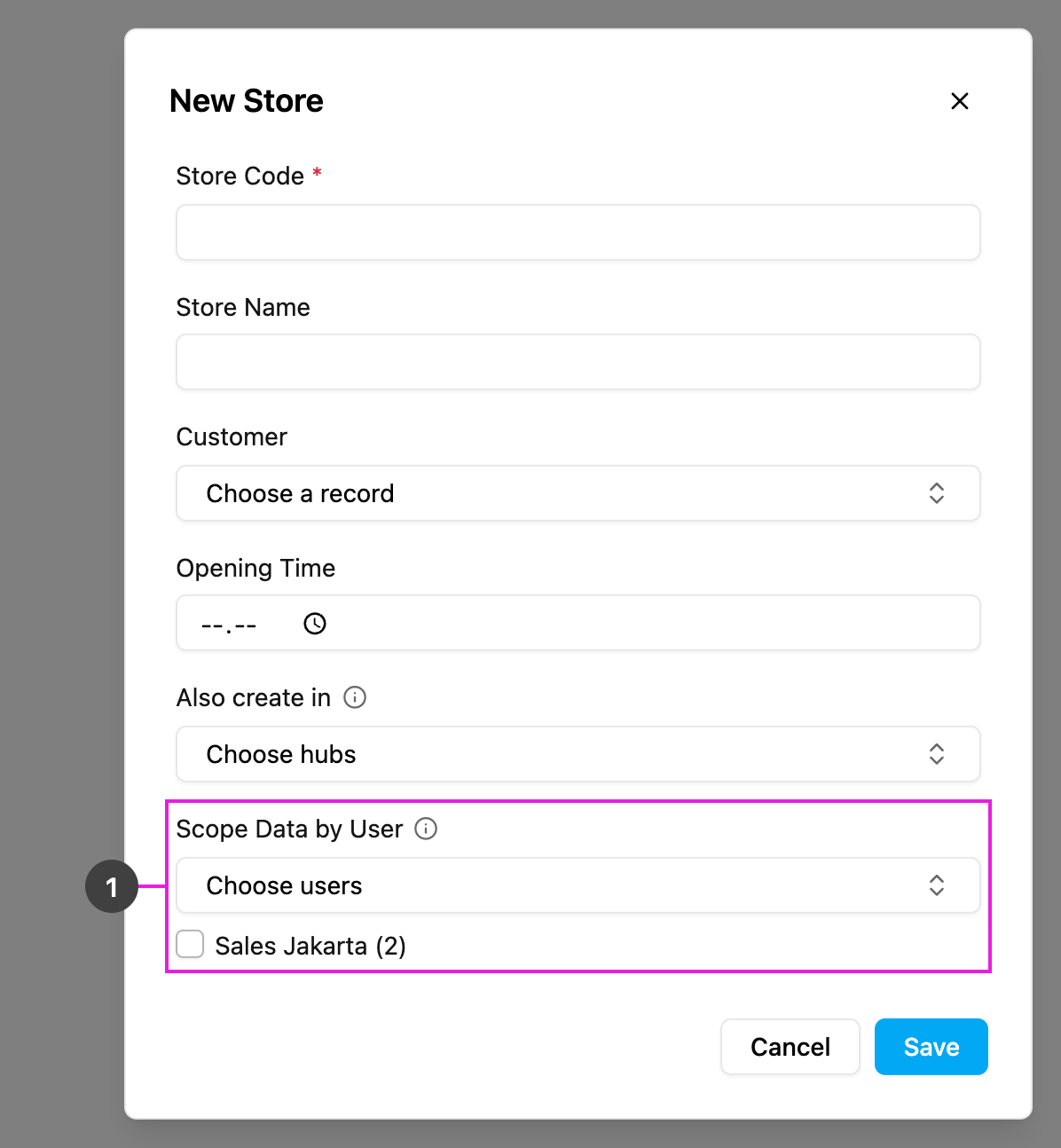
- Choose users: leave it empty and every user can see the record. Pick users to scope the record to them. Teams appear in the list too, with their member count, for example Sales (4), to pick all their members in one click.