Required permission:
- View data type
- Edit data type to edit, Delete data type to delete
Edit a data type
On Data Type, open More actions (⋯) on a data type’s row and choose Edit. The web app first asks Edit this data type? because changing its fields may affect existing records. Click Continue.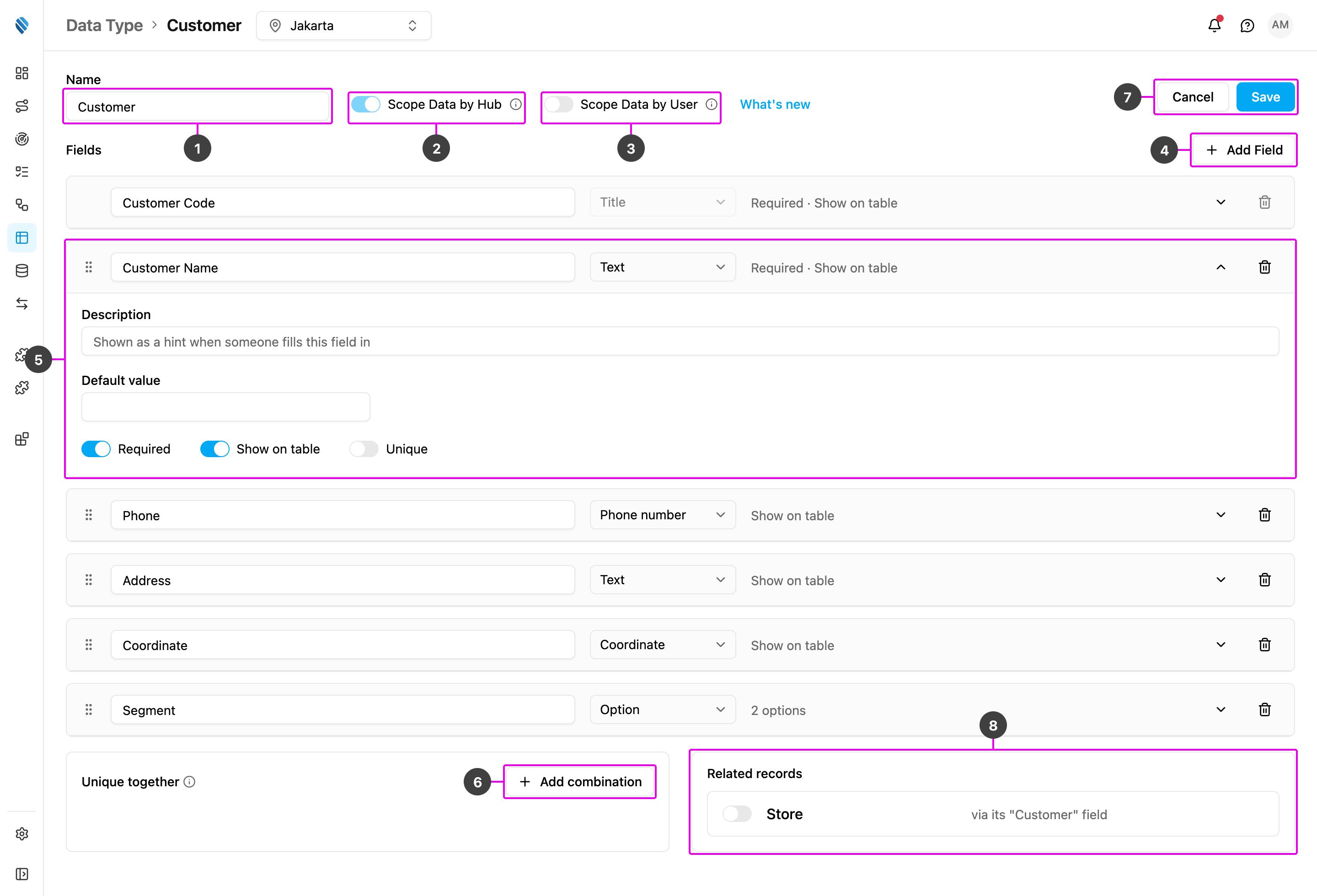
Editing an older data type
A data type set up in the older version opens like any other, with a What’s new link beside Scope Data by User. Saving it keeps it working in the older version, unless you add a feature only this version supports: a Checkbox, Multi option or Relation field, Unique, Unique together, or a field rule. Those show a warning icon, and Save asks first. See Older data types. This page has the same layout as the New Data Type page, plus a Related records box when another data type links here.- Name: rename the data type. The name of a Master Data type follows its entity and can’t be changed.
- Scope Data by Hub: you can turn it on or off only while the data type has no records. Once any record exists it is locked, with the message Records already exist, so this can no longer change. On a Master Data type it follows the entity: users and vehicles are scoped by hub, hubs and roles are shared by all hubs.
- Scope Data by User: turn it on or off. Turning it off asks Turn off Scope Data by User?, because it resets the access restriction on every existing record.
- Add Field: add a field. Existing records get the new field empty.
- Expand a field to change its label, type, rules and switches, as in Creating a data type. Drag a row to reorder the fields.
- Add combination: add or remove unique together combinations.
- Cancel or Save. If you leave with unsaved changes, the web app asks Discard unsaved changes?; click Discard changes or Keep editing.
- Related records: choose which linked data types show their records on this one.
- Removing a field asks Remove this field?. If records already hold a value in that field, the message tells you how many records have a value. The values are deleted when you save, and this can’t be undone.
- The Title can be relabelled but not removed. Its bin says The identifier field names every record, so a data type always keeps it.
- A Relation field’s target and relationship can’t change. Delete the field and add a new one instead.
- On a Master Data type (User, Hub, Vehicle, Role), you edit only the fields you added. Its built-in fields can’t be changed.
- On the sample data types Customer and Product that come with a new organization, the fields they were created with are locked (shown with a lock): only their description can change, and they can’t be removed. You can add your own fields next to them.
Delete a data type
Open More actions (⋯) on the data type’s row and choose Delete.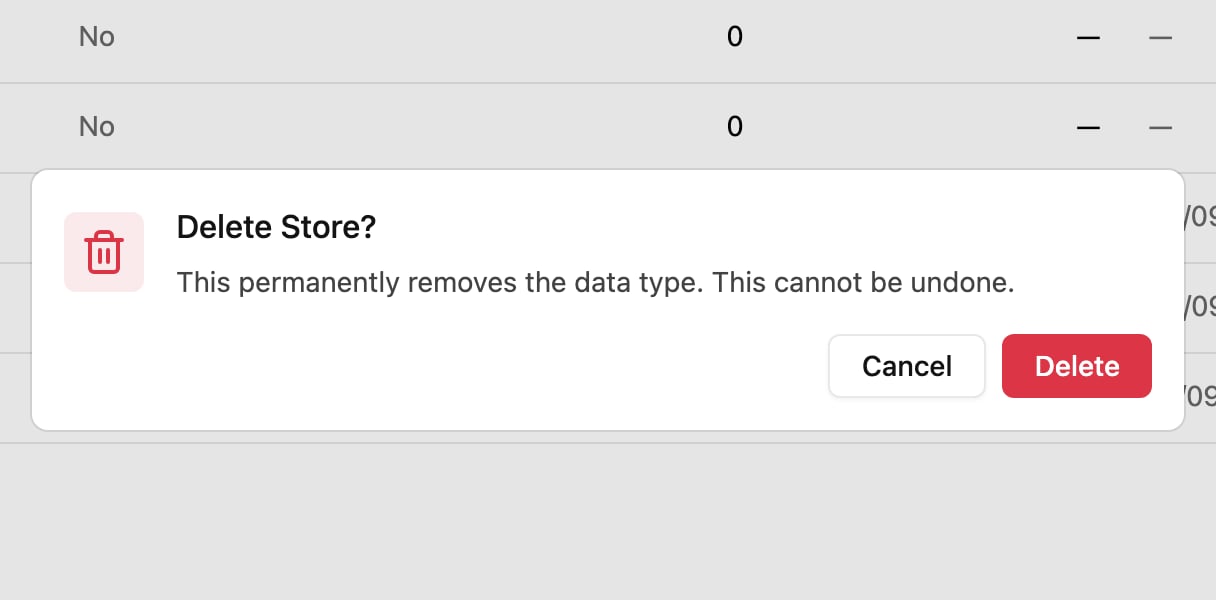
- Flow: a flow that fills its fields from this data type.
- Automation: an automation that creates or updates its records.
- Data type: another data type with a Relation field pointing here, and which field.
- The Master Data types: User, Hub, Vehicle and Role. Hover Delete to see Master Data cannot be deleted.
- The sample data types Customer and Product, as long as they still have every field they were created with. Hover the greyed-out Delete to see The Customer data type is a system default and cannot be deleted.