Required permission:
- View data type
- Create data type, Edit data type, Delete data type to change data types
The data type list
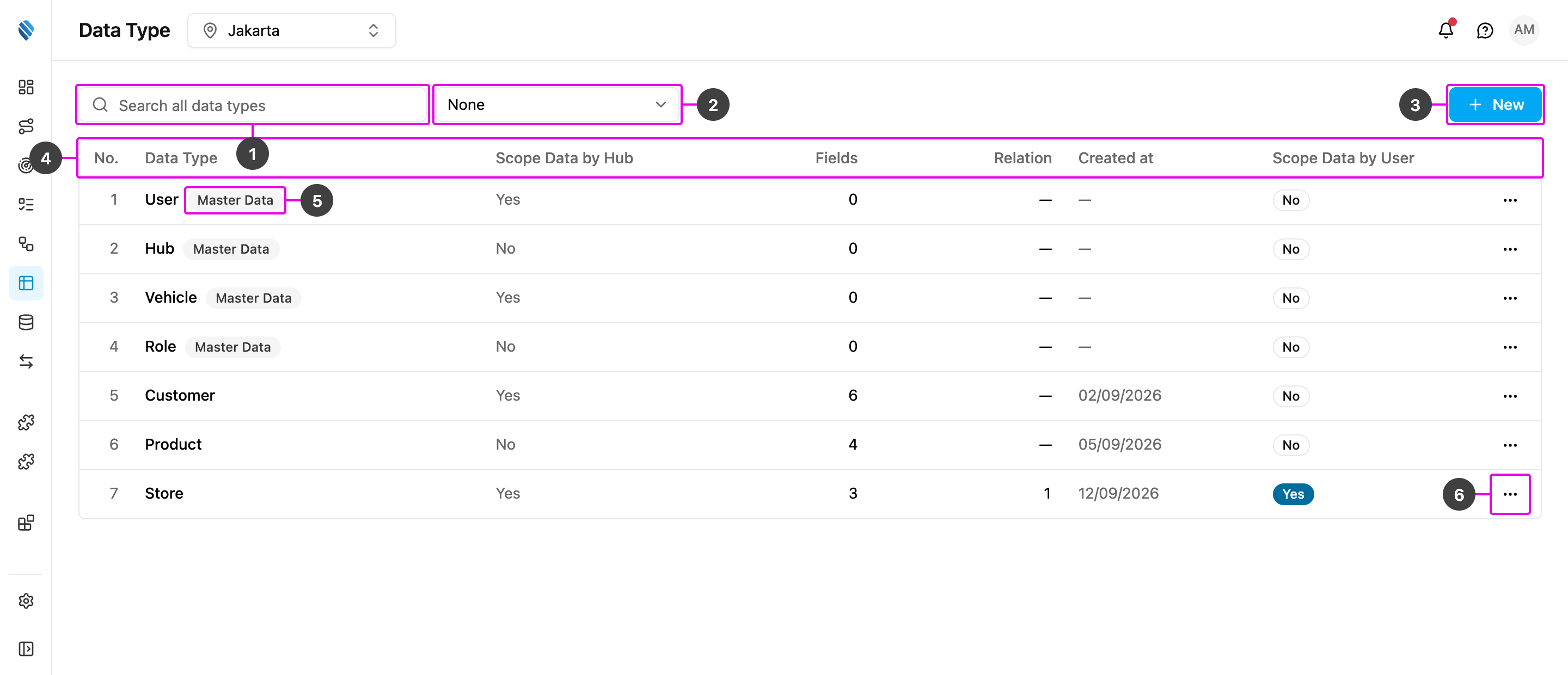
- Search all data types: find a data type by name. The search covers every data type, not only the current page.
- Group by: group the list (see below). None shows one flat list.
- New: create a data type. See Creating a data type.
-
The table columns:
- No.: row number.
- Data Type: the name of the data type.
- Scope Data by Hub: Yes means every record belongs to one hub and people see only the records of the hub they are working in. No means the records are shared by all hubs.
- Fields: how many fields the data type has, not counting relations.
- Relation: how many Relation fields it has, that is, links to another data type or to built-in data.
- Created at: the date the data type was created.
- Scope Data by User: Yes means each record can be scoped to chosen users.
- Actions: the More actions (⋯) button, see step 6. Some data types can’t be deleted, see Delete a data type.
- Master Data: the built-in data types User, Hub, Vehicle and Role. You can add your own fields to them, for example a Region on every hub, but you cannot delete them.
- More actions (⋯): Edit and Delete a data type. See Editing and deleting.
Group the list
Open Group by to group the data types.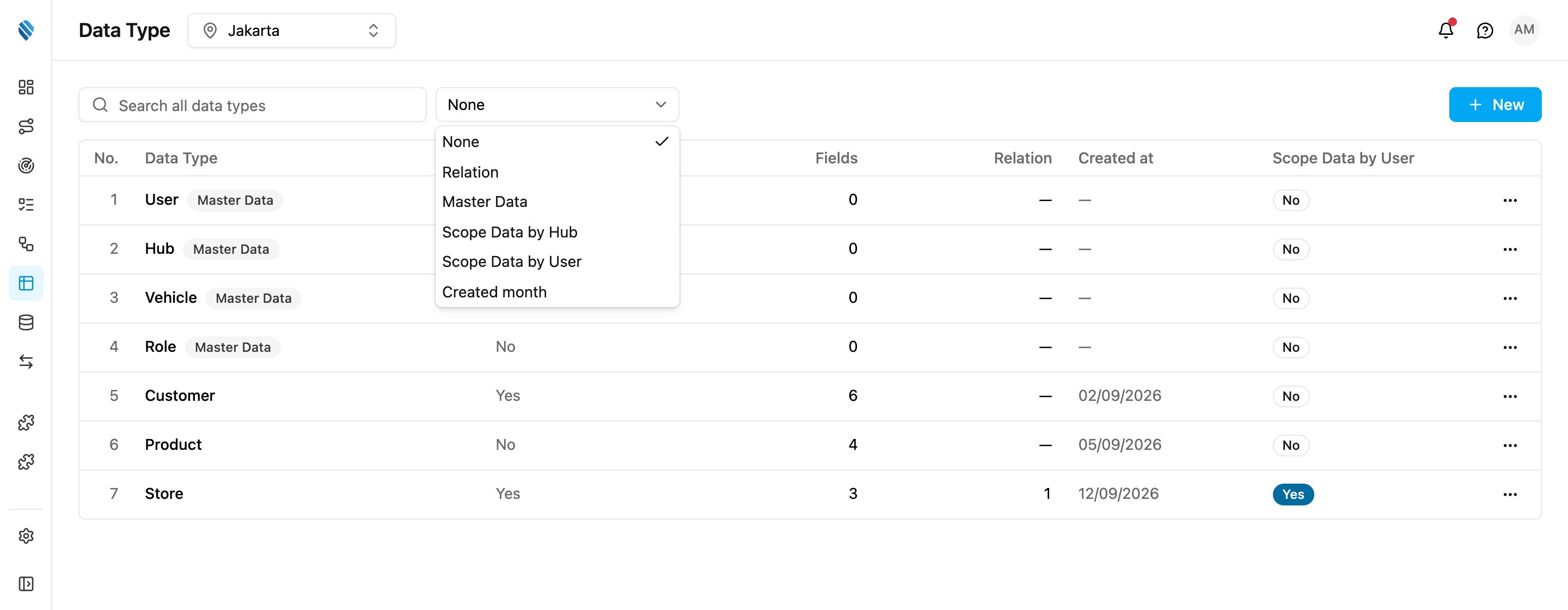
- None: no groups.
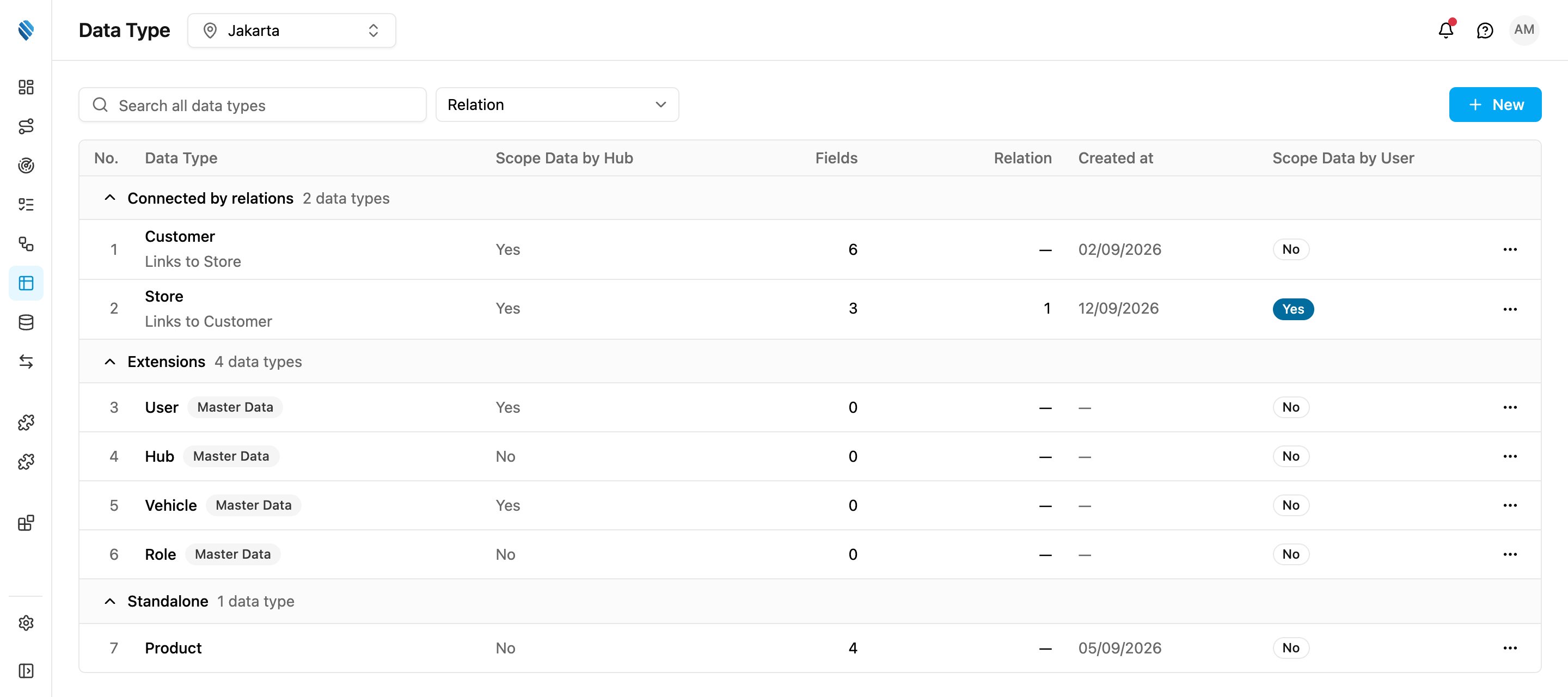
- Relation: one Connected by relations group for each set of data types linked to each other by Relation fields, then Extensions (the Master Data types), then Standalone (data types with no links to another data type). In a Connected by relations group, each row says which data types it links to, for example Links to Store.
- Master Data: Master Data first, then Other data types.
- Scope Data by Hub: Yes (scoped by hub), then No (shared by every hub).
- Scope Data by User: On, then Off.
- Created month: one group per month the data types were created. The Master Data types have no creation date and are grouped under Unknown date.
Older data types
A data type set up in the older version of the web app keeps working there, and in the mobile app, until you add a feature that only this version supports. You can open it, edit it and save it here like any other data type. Its records can be searched by any value here too. These features only work in this version:- A Checkbox, Multi option or Relation field.
- Unique on a field, or Unique together.
- Field rules: a minimum, maximum or number of decimals.
What’s new
An older data type shows a What’s new link beside Scope Data by User. Click it to see what this version adds:- Search by any value: find a record by anything shown in its columns, not only its title.
- New field types: Checkbox, Multi option and Relation.
- Connect your data: link records across data types, like a Product to its Brand, and see every record that links back.
- No more duplicates: make a field unique, like an SKU, or a combination of fields.
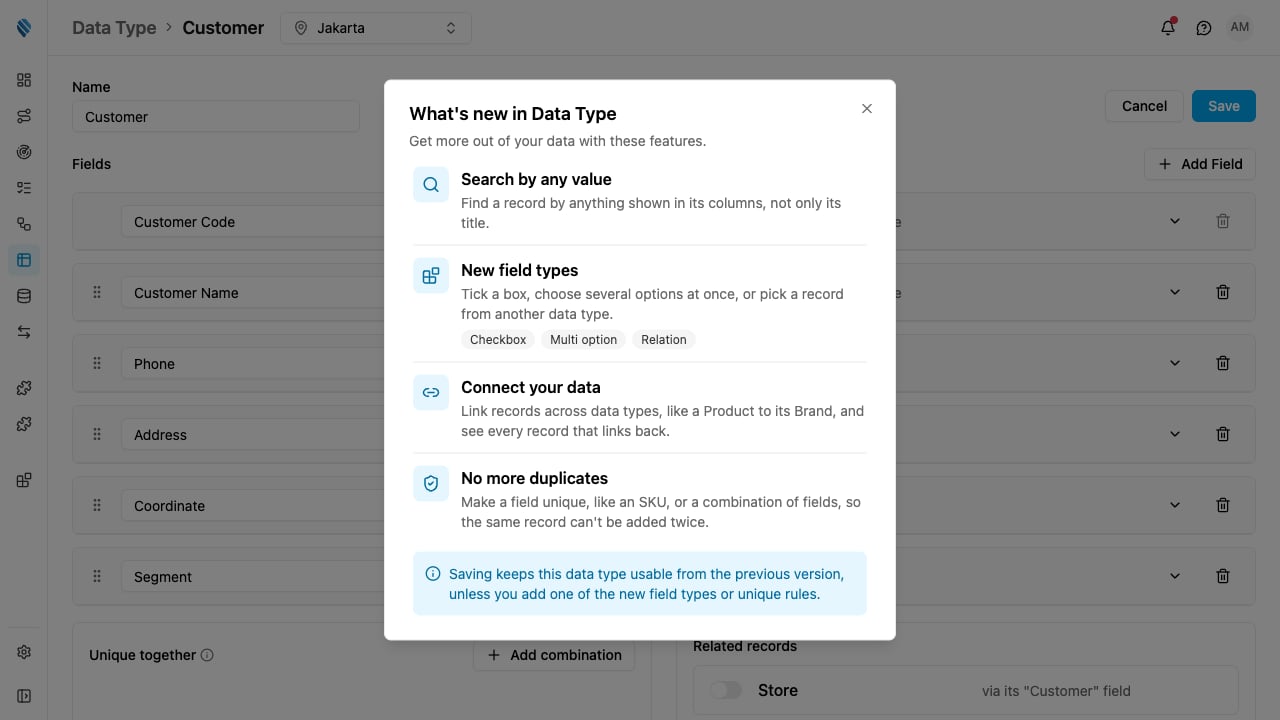
What’s new lists the features this version adds.
Adding a feature only this version supports
A field or setting that uses one of these features shows a warning icon. Point at it to read Only works in v4. Click Save, and you are asked first: will stop working in the older version, followed by the features that cause it and the flows, automations, reports and order types that use the data type.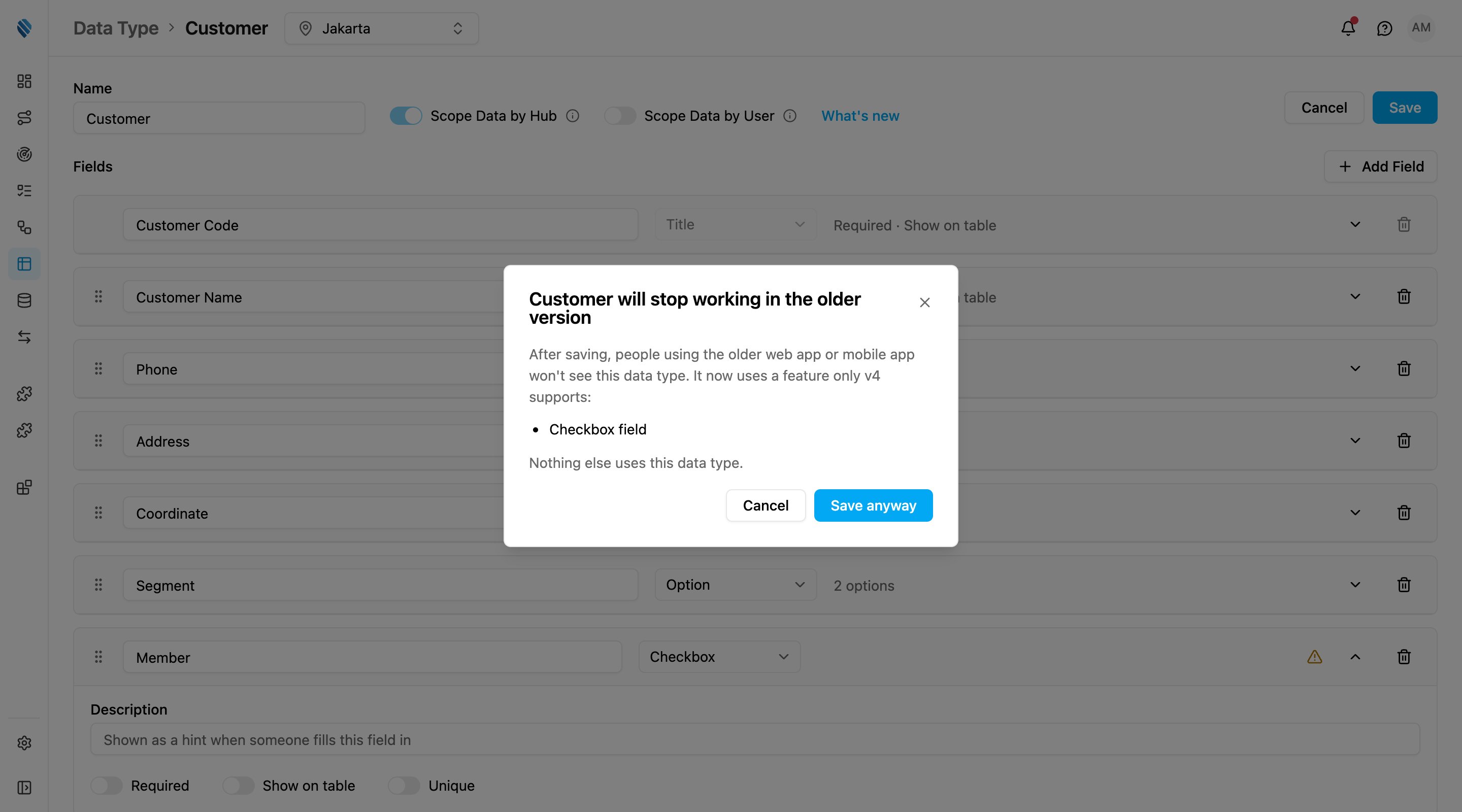
Saving a feature only this version supports asks first and says why.
- Cancel: nothing is saved, and the data type keeps working in the older version.
- Save anyway: the data type is saved. People using the older web app or mobile app no longer see it. This can’t be undone.
Preparing
After Save anyway, the records are prepared, and Preparing shows while that runs.- On Data Type, its row has a Preparing badge, and Edit and Delete are disabled until it finishes.
- On Data Source, the records show with a progress bar such as Preparing data type: 480 of 1240 records. Search and changes are paused until it finishes.
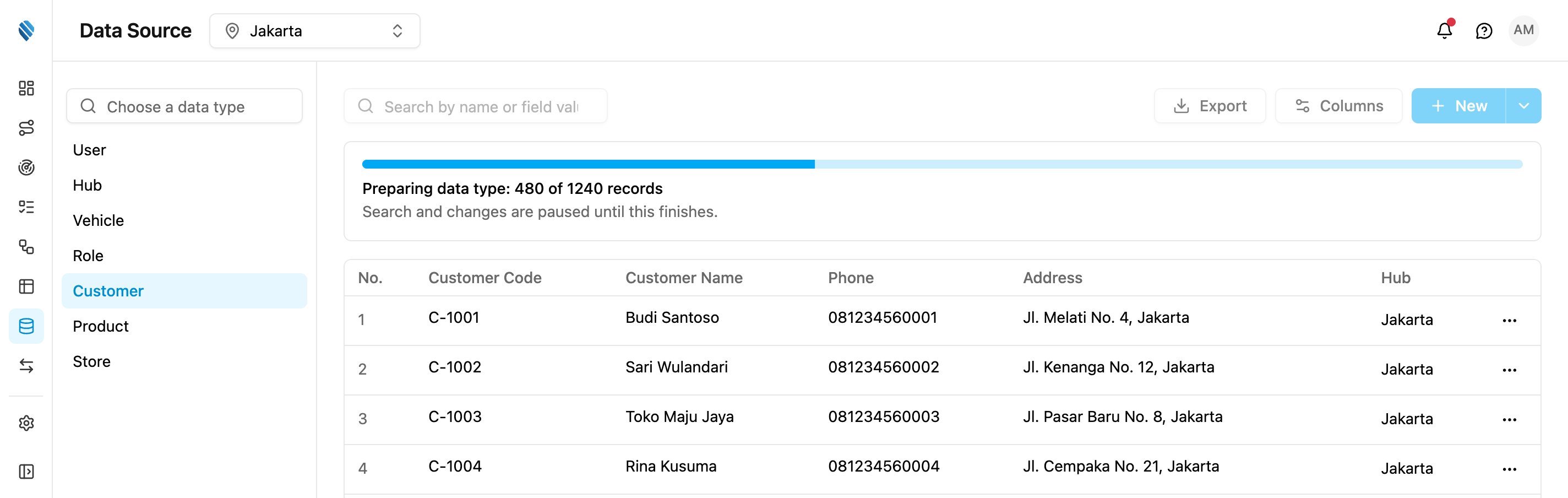
Search and changes pause while the records are prepared.
The page checks the progress every 3 seconds and reloads the records when the data type is ready. If the progress stops for more than 5 minutes, the bar says This is taking longer than expected. and shows Resume on the Data Source page. Click it to continue where it stopped. Changes made elsewhere while the data type is being prepared, for example through an automation or the API, are refused with This data type is being prepared. Please wait until it is ready.